

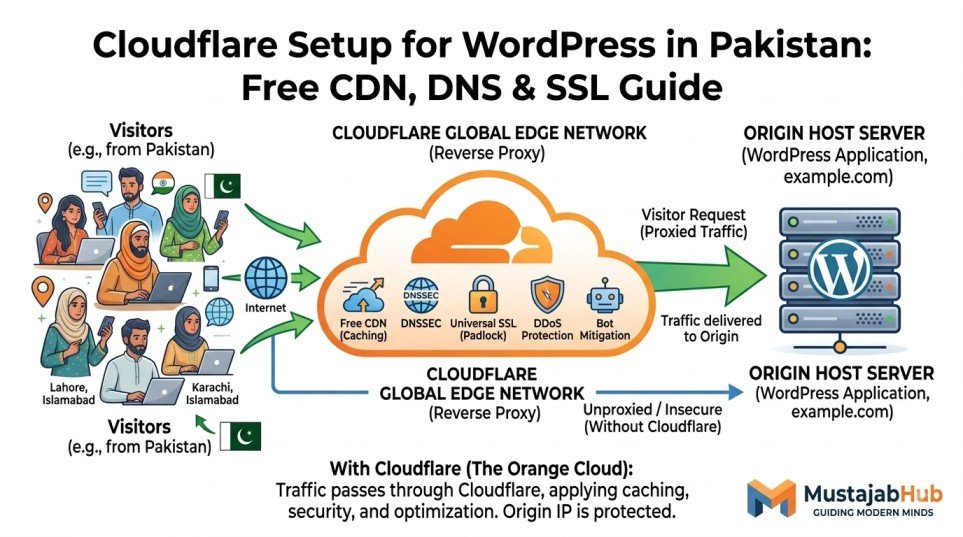

Quick answer: Cloudflare can add a free DNS layer, CDN, SSL/TLS, DDoS protection and basic bot protection to a WordPress website without replacing your existing hosting. For most Pakistani business websites, the safest setup is to move authoritative DNS to Cloudflare, verify every existing DNS record, proxy only the web records, keep email records DNS-only, use HTTPS with Full (strict) when the origin certificate supports it, and test the site after the nameserver change.
If you are using WordPress with Hostinger, cPanel hosting, another shared host, a VPS or a Pakistani hosting provider, you normally do not need to move your website to Cloudflare. Your WordPress files, database and PHP application remain on your existing hosting server. Cloudflare sits in front of that server as a DNS, traffic, security and delivery layer.
This guide explains how to configure Cloudflare for a Pakistani WordPress website without accidentally breaking your website, business email, SSL or DNS.

What Is Cloudflare?
Cloudflare is a network and internet infrastructure company that provides services including DNS, CDN, SSL/TLS, DDoS protection, bot mitigation and traffic security.
For a WordPress website, the simplest way to understand Cloudflare is:
Visitor → Cloudflare → Your hosting server → WordPress
Without Cloudflare, a visitor normally connects directly to your hosting server.
With a properly proxied Cloudflare setup, web traffic passes through Cloudflare before reaching your origin server. Cloudflare can then apply caching, security and traffic-management features to that request.
Cloudflare does not replace your WordPress hosting.
Your hosting provider still stores:
- WordPress files
- themes
- plugins
- images
- database
- PHP application
- WooCommerce data
- uploaded media
Cloudflare simply adds another layer between visitors and that origin server.
Is Cloudflare Free for WordPress Websites in Pakistan?
Yes. Cloudflare offers a Free plan that includes several useful features for small WordPress websites.
Depending on the current Cloudflare configuration and plan, the Free plan can provide:
- authoritative DNS
- CDN delivery
- free Universal SSL
- DDoS protection
- Bot Fight Mode
- caching
- HTTP/3
- traffic analytics
- HTTPS redirection
- DNS management
- Cache Rules
Cloudflare’s current documentation confirms that standard DDoS protection is available on the Free plan, while Bot Fight Mode is also available to Free customers.
Cloudflare also automatically issues and renews publicly trusted Universal SSL certificates for activated domains on a full setup.
For many small Pakistani business websites, the Free plan is therefore a sensible starting point.
Why Cloudflare Is Useful for Pakistani WordPress Websites
A Pakistani business website may have visitors from Lahore, Karachi, Islamabad, Rawalpindi, Faisalabad, Peshawar and other cities, while its hosting server may be located somewhere completely different.
That physical distance matters for network latency.
Cloudflare uses a distributed network of data centers. When a visitor requests a cacheable resource, Cloudflare can serve it from its network rather than requesting the same resource from your origin server every time.
This can be particularly useful when your WordPress website contains large numbers of:
- images
- CSS files
- JavaScript files
- fonts
- static assets
However, don’t expect Cloudflare to magically make every WordPress page fast.
Cloudflare normally caches static resources automatically, while dynamic HTML isn’t cached by default. Dynamic page caching requires additional configuration.
That distinction is important.
Cloudflare can improve delivery, but it cannot compensate for extremely slow hosting, oversized images, badly coded plugins or an overloaded WordPress database.
Cloudflare Setup Requirements
Before starting, make sure you have access to:
1. Your domain registrar
You need access to the company where your domain is registered because Cloudflare will provide new authoritative nameservers.
2. Your hosting account
Keep your hosting login available so you can confirm:
- website IP address
- SSL status
- hosting DNS records
- email configuration
- server settings
3. Your WordPress dashboard
You may need WordPress access later for:
- checking site URLs
- clearing WordPress cache
- testing forms
- checking WooCommerce
- troubleshooting redirects
4. Your business email information
This is extremely important.
Before changing nameservers, identify your:
- MX records
- SPF record
- DKIM records
- DMARC record
- mail subdomain
- email provider
A DNS migration can be technically correct for the website and still break business email if important records are missing.
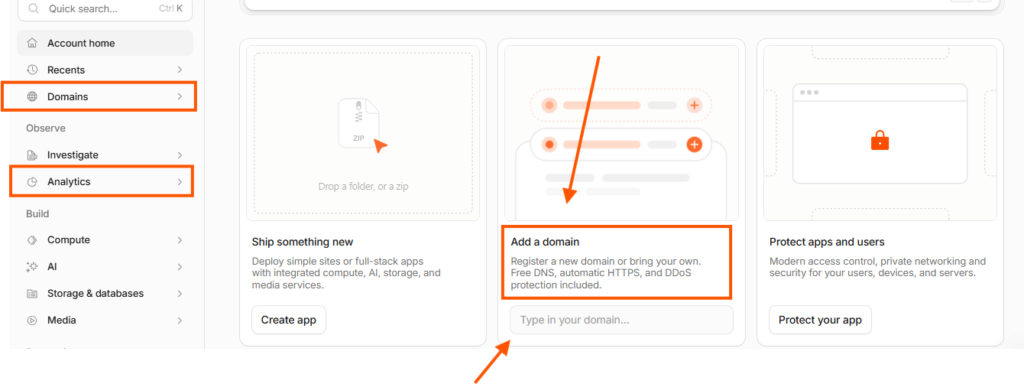
Step 1: Create Your Cloudflare Account
Create a free Cloudflare account and add your existing domain.
Enter the domain itself, such as:
example.com
You normally don’t need to enter:
Cloudflare will then begin the onboarding process and scan the domain’s existing DNS records.
Step 2: Review Every DNS Record Before Changing Nameservers
Do not rush this step.
Cloudflare can scan existing DNS records, but you should manually compare the Cloudflare DNS zone against your current DNS provider or hosting control panel.
Look for records such as:
| Record | Typical purpose |
|---|---|
| A | Points a domain/subdomain to an IPv4 address |
| AAAA | Points to an IPv6 address |
| CNAME | Alias to another hostname |
| MX | Email delivery |
| TXT | SPF, verification and other text records |
| NS | Nameserver delegation |
| DKIM CNAME/TXT | Email authentication |
| DMARC TXT | Email policy/reporting |
Your website may use more than one A record, AAAA record or CNAME.
Don’t assume that the first A record you see is the entire configuration.
Cloudflare’s documentation specifically recommends reviewing DNS records before the nameserver change because Cloudflare becomes the authoritative DNS provider after activation.
Step 3: Understand the Orange and Grey Cloud
This is one of the most important parts of the entire Cloudflare setup.
Cloudflare DNS records have a proxy status.
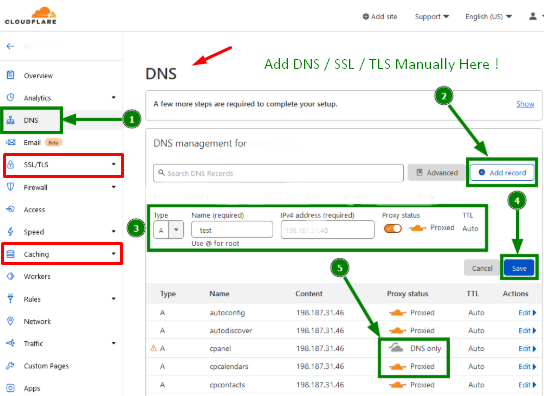
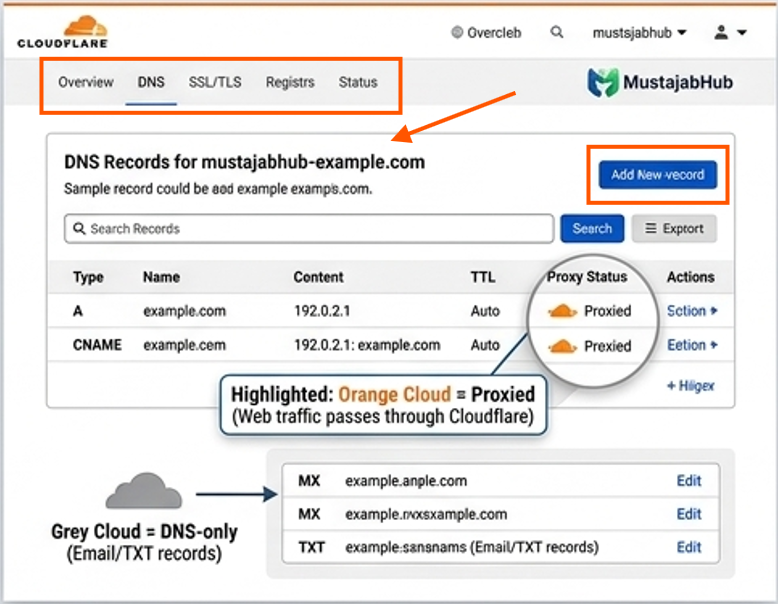
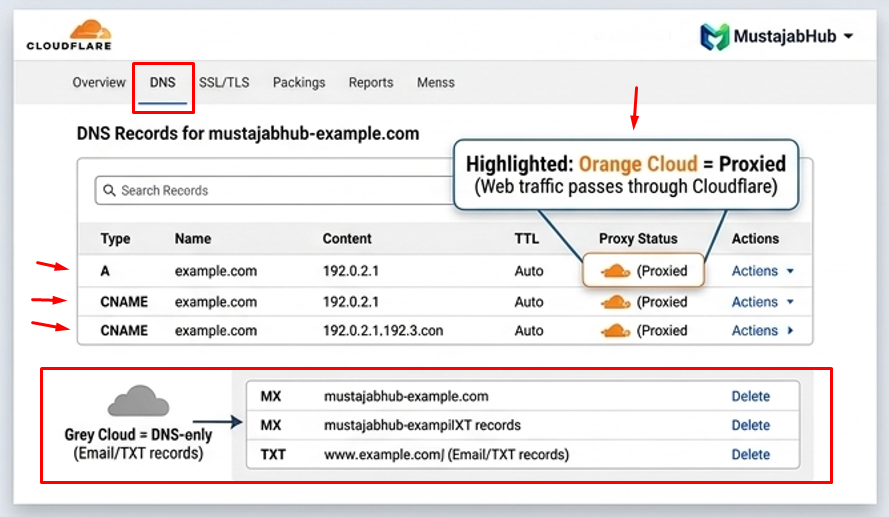
Orange cloud = Proxied
Web traffic passes through Cloudflare.
Cloudflare can then provide features such as:
- caching
- DDoS protection
- traffic security
- rules
- origin IP protection
Grey cloud = DNS only
Cloudflare provides DNS resolution, but the traffic does not pass through the Cloudflare HTTP/HTTPS proxy.
Cloudflare states that A, AAAA and CNAME records can be proxied, while MX and TXT records are DNS-only.
Simple rule for a normal WordPress site
Website A/AAAA/CNAME → Orange
Mail/MX/TXT → Grey
FTP/cPanel/mail-related hostnames → normally Grey
Don’t blindly orange-cloud every DNS record.
Step 4: Protect Your Business Email
This deserves its own section because it is one of the easiest things to break during a Cloudflare migration.
Suppose your business uses:
contact@example.com
Your website may work perfectly after the nameserver change while incoming email stops working because an MX or mail-related record wasn’t copied correctly.
Before switching nameservers, verify:
- MX records
- SPF
- DKIM
- DMARC
- mail hostnames
- Microsoft 365 or Google Workspace records if applicable
Cloudflare does not proxy MX and TXT records.
After the migration, send a test email to and from your business address.
Don’t consider the Cloudflare setup complete until email works.
Step 5: Change Your Domain Nameservers
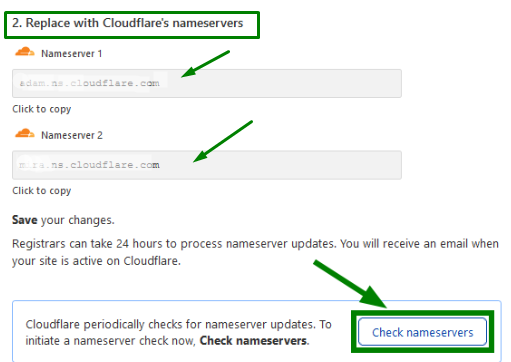
Cloudflare will provide two assigned nameservers.
They may look something like:
xxxx.ns.cloudflare.com
and
yyyy.ns.cloudflare.com
Your actual nameservers will be different.
Log into your domain registrar and replace the existing authoritative nameservers with the Cloudflare nameservers shown in your Cloudflare dashboard.
Changing nameservers is what makes Cloudflare the authoritative DNS provider for the domain.
Cloudflare says the activation process can take a few minutes and, depending on circumstances, up to 24 hours.
Step 6: Check DNS Propagation
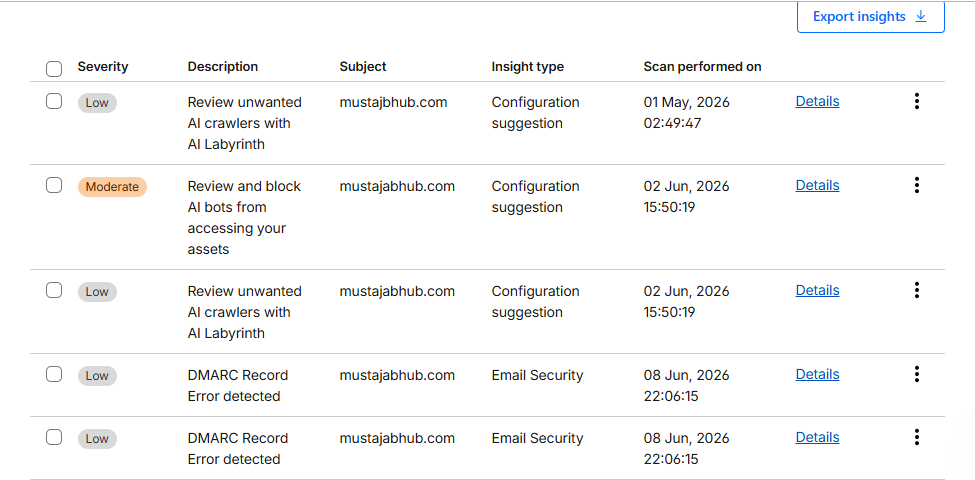
Don’t panic if one device shows the old DNS information while another shows the new Cloudflare information.
DNS changes can take time to propagate.
Check:
- your domain
- www version
- MX records
- A record
- CNAME records
- nameservers
You can use a DNS lookup service to compare results from different locations.
For a Pakistani business, test the website from your normal internet connection as well as mobile data.
Step 7: Configure SSL/TLS Correctly
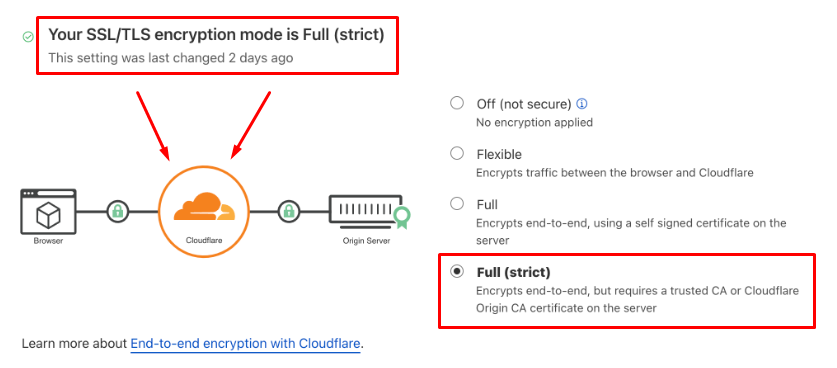
Once Cloudflare is active, open:
Cloudflare → SSL/TLS
You will see several encryption modes.
For most properly configured WordPress websites, the preferred configuration is:
Full (strict)
Cloudflare recommends Full or Full (strict), with Full (strict) providing stronger validation of the origin certificate.
Your origin server must have a valid certificate for Full (strict).
If your hosting provider already supplies a valid SSL certificate, this is usually straightforward.
Step 8: Turn On HTTPS
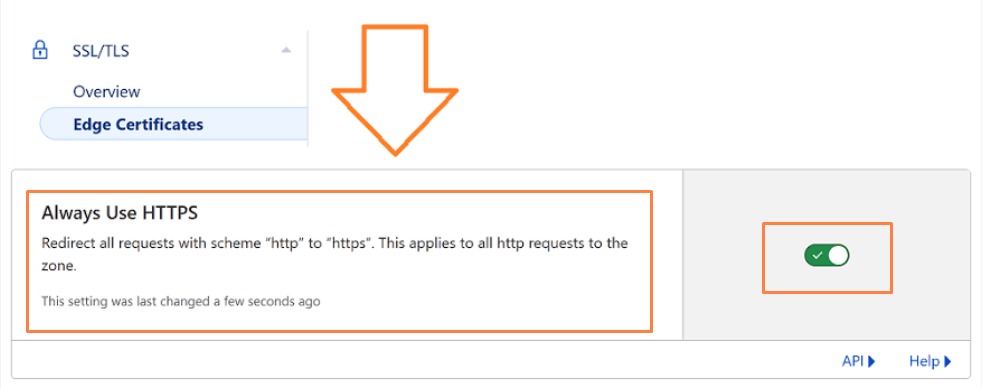
Cloudflare’s Always Use HTTPS feature redirects HTTP requests to HTTPS.
This means:
http://example.com
can redirect to:
Cloudflare provides Always Use HTTPS on the Free plan.
However, HTTPS redirection alone doesn’t fix mixed-content problems.
If your page still requests:
http://example.com/image.jpg
while the page itself is HTTPS, the browser can still flag the insecure resource.
Check your website after enabling HTTPS.
Step 9: Check for Mixed Content
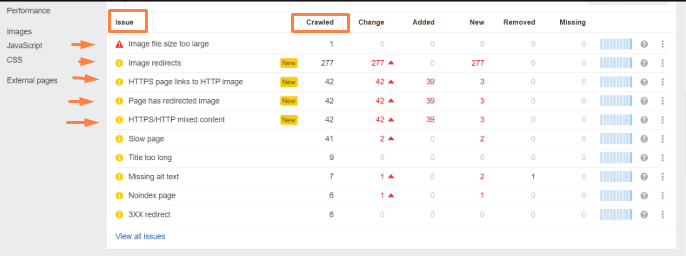
After activating SSL, test:
- homepage
- contact page
- service pages
- blog posts
- images
- CSS
- JavaScript
- fonts
- forms
- WooCommerce checkout
Look for:
- insecure HTTP resources
- broken images
- missing styles
- JavaScript errors
- browser security warnings
Cloudflare’s Automatic HTTPS Rewrites can help with certain insecure resource URLs, but it should not be treated as a replacement for properly fixing your WordPress URLs and content.
Step 10: Configure Caching Carefully
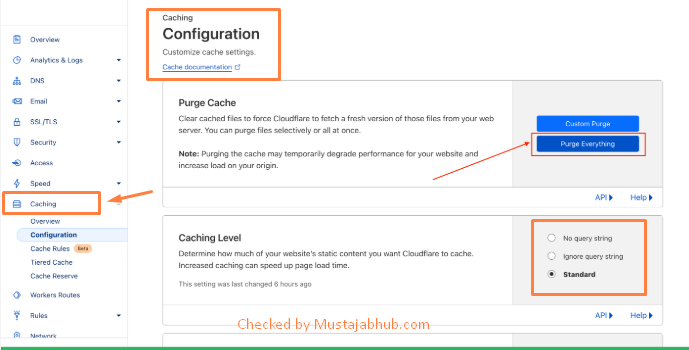
Cloudflare’s CDN automatically caches many static resources such as:
- images
- CSS
- JavaScript
- fonts
Dynamic WordPress HTML is different.
Cloudflare does not automatically cache all WordPress HTML pages. Cache Rules can be used when you have a specific reason and understand which URLs are safe to cache.
For a standard WordPress business website, be careful with:
/wp-admin/- login pages
- WooCommerce cart
- checkout
- account pages
- personalized pages
- forms
- pages using cookies
You don’t want a visitor to receive another user’s personalized content.
Never blindly use “Cache Everything” on a WooCommerce website.
Step 11: Enable Useful Free Cloudflare Features
Once your basic configuration works, review these features.
DDoS protection
Cloudflare provides standard DDoS protection on Free, Pro, Business and Enterprise plans.
Bot Fight Mode
Bot Fight Mode is available to Free customers and detects certain automated bot traffic.
HTTP/3
HTTP/3 is available on all Cloudflare plans and uses QUIC to improve transport performance, particularly on networks where packet loss can occur.
Compression

Cloudflare supports modern compression technologies when delivering supported content.
Don’t turn every experimental optimization on at once, though.
Make one change, test the website, then continue.
What About the Cloudflare WordPress Plugin?
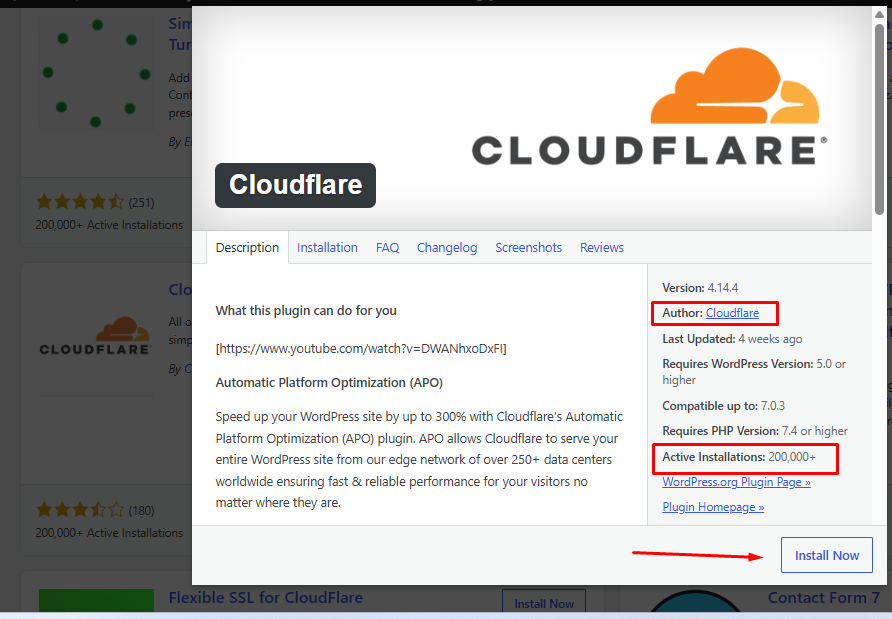
The official Cloudflare WordPress plugin is useful, but you don’t need it simply to point your domain’s nameservers to Cloudflare.
It can help with WordPress-specific integration and cache purging.
Cloudflare’s WordPress integration includes automatic cache purging when website content changes.
If you already use another caching plugin, test the combination carefully rather than stacking every available optimization.
Cloudflare also offers Automatic Platform Optimisation (APO) for WordPress, but APO is a separate feature from the basic Free CDN setup. Cloudflare’s current documentation identifies APO as requiring a paid add-on for Free-plan users or inclusion through higher Cloudflare plans.
Cloudflare + WordPress + Caching Plugin: What Should You Use?
A common mistake is installing:
- Cloudflare
- LiteSpeed Cache
- WP Rocket
- another cache plugin
- another image optimization plugin
- another CDN plugin
and turning everything on.
That’s not automatically faster.
A better approach is the following:
WordPress → one primary page/server cache → Cloudflare CDN → optimized assets
The exact configuration depends on your hosting stack.
For example, a LiteSpeed server may already have server-level caching available through LiteSpeed Cache.
A different host may use another caching system.
The correct question isn’t:
“How many optimization plugins should I install?”
It’s:
“Which layer is responsible for each optimization, and are two systems fighting each other?”
Cloudflare Security Settings for WordPress
Cloudflare can add an important security layer, but it isn’t a replacement for WordPress security.
You should still:
- update WordPress core
- update plugins
- update themes
- use strong administrator passwords
- enable two-factor authentication where appropriate
- remove unused plugins
- remove unused administrator accounts
- maintain off-site backups
- monitor suspicious login attempts
- keep PHP supported
- protect the hosting account itself
Cloudflare can protect traffic before it reaches your origin, but your WordPress installation still needs to be maintained.
Cloudflare also provides WordPress-specific protection in some of its security systems, including protections involving xmlrpc.php.
Don’t disable XML-RPC blindly, though. Some WordPress services and integrations can depend on it.
What Is DNSSEC and Should Pakistani Businesses Use It?
DNSSEC stands for Domain Name System Security Extensions.
It adds cryptographic authentication to DNS so that DNS responses can be validated as coming from the authoritative DNS system rather than being silently altered.
For an established business domain, DNSSEC can be a useful additional security layer.
However, DNSSEC needs to be handled carefully during a nameserver migration.
If DNSSEC is already enabled at your registrar, Cloudflare warns that it should be correctly handled before changing nameservers; otherwise, the domain can experience connectivity problems.
Cloudflare Setup Checklist for Pakistani WordPress Websites
Copy this checklist before changing your DNS:
□ Cloudflare account created
□ Domain added to Cloudflare
□ A records checked
□ AAAA records checked
□ CNAME records checked
□ MX records checked
□ SPF checked
□ DKIM checked
□ DMARC checked
□ Mail hostname checked
□ Website records set to Proxied where appropriate
□ Email records remain DNS-only
□ FTP/cPanel records checked
□ Cloudflare nameservers copied
□ Registrar nameservers updated
□ Cloudflare status changed from ‘Pending’ to ‘Active’
□ Website loads correctly
□ www version tested
□ non-www version tested
□ SSL/TLS configured
□ Full (strict) tested where origin certificate supports it
□ HTTP redirects to HTTPS
□ Mixed content checked
□ WordPress admin works
□ Contact forms tested
□ WooCommerce checkout tested if applicable
□ Cache behavior tested
□ Mobile speed tested
□ Desktop speed tested
□ Business email tested
□ DNS records rechecked
How to Test Cloudflare After Setup
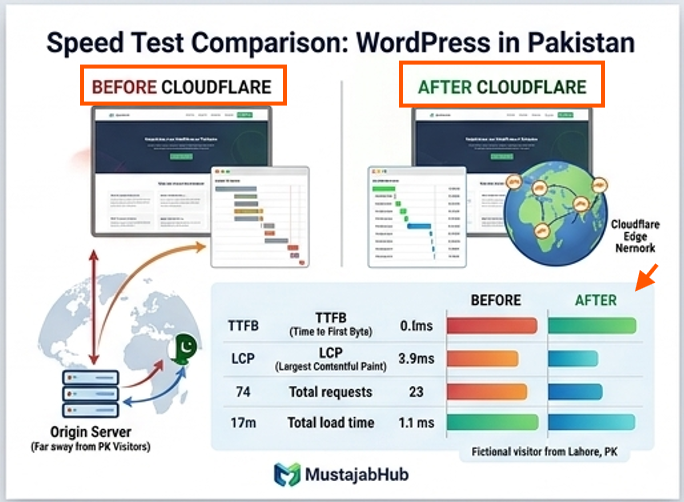
Don’t assume the setup worked just because Cloudflare says Active.
Run these tests.
Test 1: Website
Open:
Then test:
Make sure your preferred version redirects correctly.
Test 2: SSL
Check for:
- HTTPS
- valid certificate
- no browser security warning
- no mixed content
Test 3: DNS
Check:
- A
- AAAA
- CNAME
- MX
- TXT
Test 4: Email
Send:
Gmail → business email
Then:
business email → Gmail
Test 5: WordPress
Test:
- login
- admin dashboard
- contact form
- search
- menus
- images
- mobile layout
Test 6: WooCommerce
If your site sells products, test:
- product page
- add to cart
- cart
- checkout
- payment
- order confirmation
- customer account
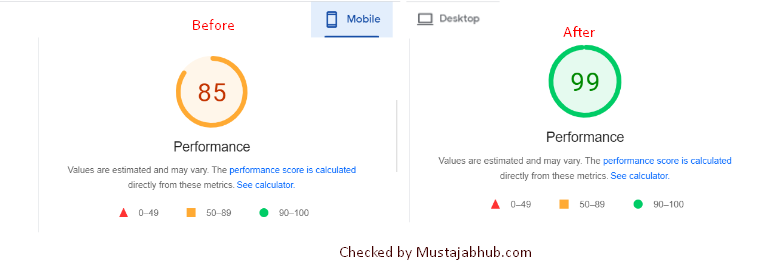
Test 7: Performance
Run:
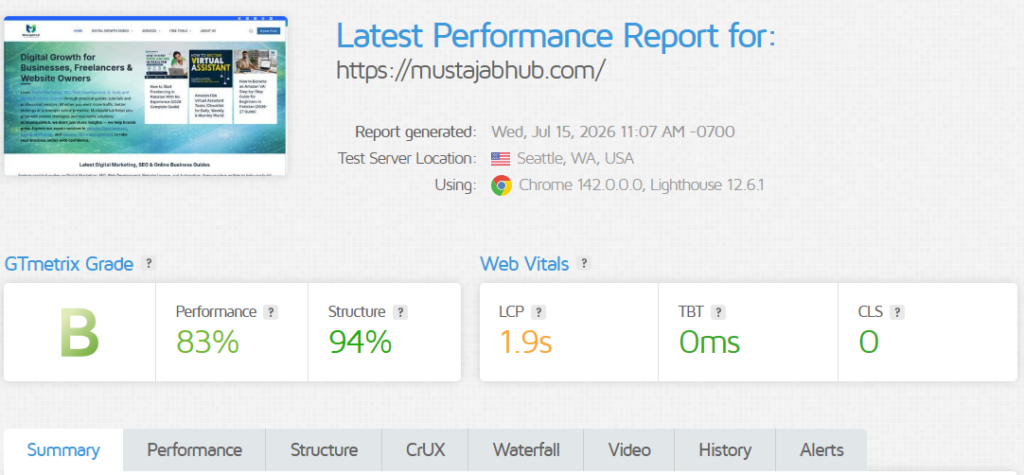
- Google PageSpeed Insights
- GTmetrix
- WebPageTest
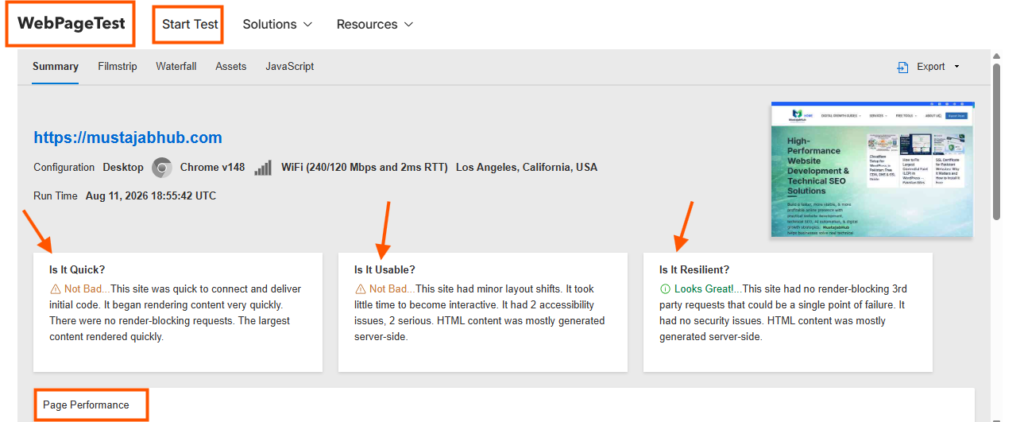
Don’t judge Cloudflare solely by a PageSpeed score.
Compare:
- LCP
- INP
- CLS
- TTFB
- total page size
- cached/static assets
- waterfall
- server response time
How to Test Cloudflare Specifically for Pakistani Visitors
This is one of the tests I recommend adding to this article because it makes the guide genuinely Pakistan-specific.
Run the same page:
Before Cloudflare
and:
After Cloudflare
Test from:
- Lahore
- Karachi
- Islamabad/Rawalpindi
where practical.
Also test using:
- Wi-Fi
- mobile data
Record: (This is the estimated numbers and record below)
| Test | Before | After |
|---|---|---|
| TTFB | 800ms | 250ms |
| LCP | 5.0s | 1.9s |
| Total page size | 5.05mb | 1.2mb |
| Requests | 60.2k | 3.2k |
| Load time | 4.5 sec | 2.0 sec |
Don’t invent the numbers.
Publish the actual measurements.
That single table is potentially more valuable than another 500 words of generic SEO text.
Common Cloudflare WordPress Problems
Cloudflare Error 522
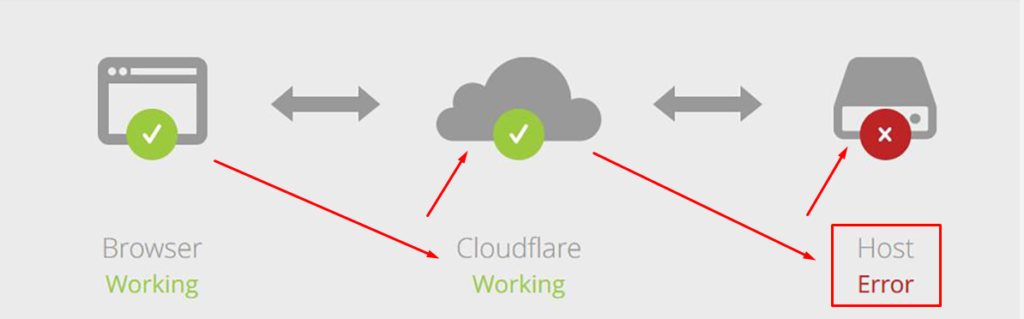
A 522 generally indicates a connection problem between Cloudflare and the origin server.
Check:
- hosting server availability
- origin IP
- firewall
- Cloudflare IP allowlisting
- server resource usage
- DNS configuration
Don’t immediately reinstall WordPress.
Cloudflare Redirect Loop

A redirect loop often involves a mismatch between the following:
- WordPress HTTPS configuration
- origin SSL
- Cloudflare SSL/TLS mode
- HTTP-to-HTTPS redirects
Check the encryption mode first.
If the origin supports a valid certificate, Full (strict) is normally the preferred configuration.
Website Works but Email Doesn’t
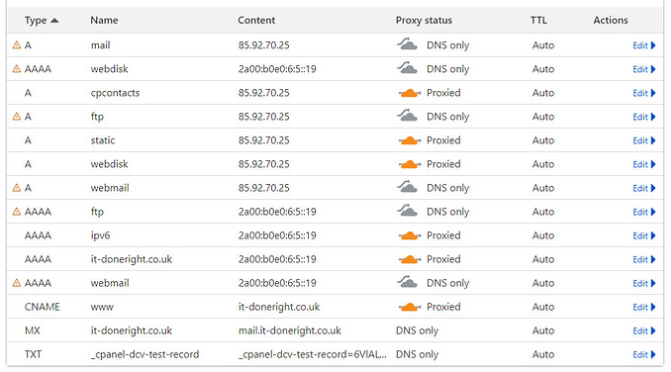
Check:
- MX
- SPF
- DKIM
- DMARC
- mail hostname
Remember that MX and TXT records are DNS-only in Cloudflare.
Website Looks Broken After Cloudflare
Temporarily investigate:
- cached CSS
- JavaScript
- optimization settings
- third-party scripts
- theme compatibility
- caching plugin conflicts
Purge the relevant cache and test again.
Don’t enable five optimization features simultaneously while troubleshooting.
Don’t Make These Cloudflare Mistakes
Don’t proxy your MX records
Email needs DNS resolution rather than the normal Cloudflare HTTP proxy.
Don’t blindly enable Cache Everything
Dynamic WordPress and WooCommerce pages can contain personalized or transactional content.
Don’t use Flexible SSL when you can properly secure the origin
Cloudflare’s Flexible mode encrypts traffic between the visitor and Cloudflare but leaves the Cloudflare-to-origin connection unencrypted. Cloudflare recommends Full or Full (strict) whenever possible.
Don’t forget your origin server
Cloudflare can hide a proxied origin IP, but accidentally exposed DNS records can reveal it.
Don’t assume Cloudflare fixes bad hosting
If the origin server is overloaded, poorly configured or extremely slow, Cloudflare doesn’t magically turn it into a high-performance WordPress server.
Don’t install every Cloudflare-related plugin
Use only the integrations you actually need.
Is Cloudflare Worth It for a Pakistani Business Website?
For many small Pakistani business websites, yes.
It is particularly useful when the site needs the following:
- free HTTPS
- CDN delivery
- DNS management
- DDoS protection
- bot mitigation
- origin IP protection
- better static asset delivery
- traffic visibility
- a scalable DNS/security layer
But Cloudflare should be treated as one part of your WordPress performance and security stack, not the entire solution.
A slow website with:
- 5 MB images
- 30 plugins
- poor hosting
- unoptimized JavaScript
- bad database queries
can remain slow after Cloudflare.
MustajabHub Field Method: How We Check a Cloudflare WordPress Setup
When reviewing a WordPress website, we don’t start by turning on every Cloudflare feature.
We first check the architecture:
Domain → DNS → Cloudflare → Origin → WordPress → Cache → Database
Then we test each layer.
Our basic audit checks:
- DNS correctness
- proxy status
- origin exposure
- SSL/TLS mode
- HTTPS redirects
- mixed content
- cache behavior
- WordPress compatibility
- email DNS
- mobile performance
- Core Web Vitals
- forms and WooCommerce
- suspicious traffic
- hosting response time
This approach matters because a Cloudflare problem and a WordPress problem can look almost identical from the visitor’s perspective.
Frequently Asked Questions – Cloudflare Setup for WordPress in Pakistan
Is Cloudflare free for WordPress in Pakistan?
Yes. Cloudflare has a free plan that provides authoritative DNS, CDN functionality, universal SSL and standard DDoS protection. Bot Fight Mode is also available to free customers.
Does Cloudflare replace WordPress hosting?
No. WordPress remains installed on your hosting server. Cloudflare operates as a DNS, proxy, delivery and security layer in front of that server.
Does Cloudflare make WordPress faster?
It can. Cloudflare caches and delivers many static resources from its distributed network. However, dynamic WordPress HTML isn’t automatically cached by default, and Cloudflare cannot fix poor hosting, oversized images or inefficient WordPress code by itself.
Should I use full or full (strict) SSL?
Use Full (strict) when your origin server has a valid certificate that meets Cloudflare’s requirements. Cloudflare recommends Full or Full (strict) rather than leaving the origin connection unencrypted.
Will changing nameservers break my email?
It can if your DNS records are incomplete or incorrect. Before changing nameservers, verify MX, SPF, DKIM, DMARC and mail-related records
Do I need the Cloudflare WordPress plugin?
No, not for basic Cloudflare DNS and proxy functionality. The plugin can provide useful WordPress integration and cache-purging features.
Is Cloudflare good for WooCommerce?
It can be, but caching must be configured carefully. WooCommerce contains dynamic pages such as carts, checkout & customer accounts that should not be treated like ordinary static pages.
Does Cloudflare provide DDoS protection for free?
Yes. Cloudflare currently provides standard unmetered DDoS protection on its Free plan.
What is the orange cloud in Cloudflare?
The orange cloud means the DNS record is proxied through Cloudflare. This allows Cloudflare to apply its web traffic, caching & security features to supported traffic.
How long does Cloudflare DNS propagation take?
Cloudflare says activation can take a few minutes and, depending on the situation, up to 24 hours.
Can I use Cloudflare with Hostinger?
Yes. Cloudflare can operate independently of your hosting provider. You can keep your WordPress website on Hostinger and point your domain’s authoritative nameservers to Cloudflare.
Will Cloudflare setup break my site temporarily?
If DNS records are verified correctly beforehand, your site typically stays online throughout the switch. Most issues happen when an A record is missed or MX records get accidentally proxied.
Is Cloudflare’s free plan actually enough, or do I need to pay?
For most Pakistani business websites, the free plan covers CDN caching, basic DDoS protection, and free SSL — which is exactly what a standard business site needs.
Why does my site show a redirect loop after enabling Cloudflare?
This usually means your SSL/TLS mode is set incorrectly. If your host has its own SSL certificate, set Cloudflare’s mode to “Full” or “Full (Strict)” instead of “Flexible.”
Final Cloudflare Setup Checklist
Before you finish, confirm:
DNS
✓ A record correct
✓ AAAA checked
✓ CNAME checked
✓ MX checked
✓ SPF checked
✓ DKIM checked
✓ DMARC checked
Cloudflare
✓ Domain active
✓ Web records proxied
✓ Email records DNS-only
✓ SSL/TLS configured
✓ HTTPS working
✓ DDoS protection active
✓ Bot protection reviewed
✓ Cache configuration tested
WordPress
✓ Admin works
✓ Forms work
✓ Images work
✓ CSS works
✓ JavaScript works
✓ WooCommerce tested
✓ Cache plugin tested
Business
✓ Website works on mobile data
✓ Business email works
✓ Contact form delivers emails
✓ Important pages load
✓ Performance tested
✓ No redirect loops
✓ No mixed-content warnings
Final Recommendation
For most Pakistani WordPress business websites, I recommend starting with:
WordPress hosting + Cloudflare DNS + Cloudflare CDN/proxy + Universal SSL + Full (strict) where supported + sensible caching + backups + WordPress security maintenance.
You don’t need an expensive Cloudflare plan just because you run a business website.
Start with the Free plan, measure the results, and upgrade only when your traffic, security requirements or performance architecture actually justify additional features.
If your website still has poor Core Web Vitals after Cloudflare, the next place to investigate is usually the origin server, WordPress theme, plugins, images, database or page-generation process rather than simply adding more Cloudflare settings.
Not Sure Where to Start?
If you’re unsure whether your DNS records are set up correctly or your Cloudflare configuration is actually helping, a technical review clears that up fast. Our WordPress speed optimization service includes proper CDN and Cloudflare configuration as part of a full site speed audit. Request a free setup review here or contact us directly if you’d rather have it handled for you.
For further technical reference, Cloudflare’s own getting started documentation covers the full DNS and nameserver process in detail, & WPBeginner’s Cloudflare CDN setup guide offers additional screenshots for the WordPress-specific steps.
About the Author
Rana Umar is a content writer and website strategist at MustajabHub, where he covers WordPress development, website performance, technical SEO & practical security for Pakistani businesses.
This guide is based on WordPress implementation principles, Cloudflare’s current technical documentation and hands-on website troubleshooting. Configuration details can change as Cloudflare updates its dashboard and products, so readers should verify plan availability and dashboard labels against Cloudflare’s current documentation before making production changes.
Read More About : Technical-seo-audit-checklist | Why-is-my-wordpress-website-slow | how to get Google AdSense approved in Pakistan | ssl-certificate-pakistan-website | fix-lcp-wordpress-pakistan






Sehr guter Beitrag! Kostenlose Voice-Games: The Choicer Voicer: . The Choicer Voicer