

Quick answer: A 90+ Google PageSpeed score is achievable for many WordPress websites, but you shouldn’t optimize for the number alone. Start with Google PageSpeed Insights, identify the biggest bottleneck, and improve the underlying performance metrics: LCP, INP, CLS, TTFB, JavaScript execution, image delivery, caching and server response time. For Pakistani websites, mobile performance deserves special attention because visitors may be using different mobile devices, networks and connection conditions.
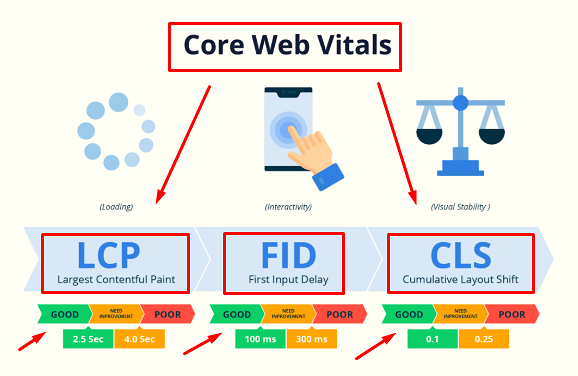
A PageSpeed score of 90–100 falls in Google’s “Good” range for the Lighthouse Performance score, but the score is a lab diagnostic rather than a direct ranking grade. PageSpeed Insights combines Lighthouse lab testing with real-world Chrome UX Report data when sufficient field data is available.
If your WordPress website is stuck at 40, 50, 60 or 70 on mobile, don’t immediately change your hosting or install five different optimization plugins.
Measure first. Fix the biggest bottleneck. Test again.
That’s the approach this guide follows.
Last Tested :
Performance guide reviewed: July 2026
PageSpeed/Lighthouse information: reviewed against current Google documentation
Testing tools: Google PageSpeed Insights, Google Search Console, GTmetrix/WebPageTest
Audience: Pakistani WordPress business owners
What Does Google PageSpeed Insights Actually Measure?
Google PageSpeed Insights is a performance testing tool that analyzes individual web pages on mobile and desktop.
It uses two important types of information:
Lab data: a controlled Lighthouse test that helps you diagnose performance problems.
Field data: real-user performance information from the Chrome User Experience Report (CrUX), when sufficient data is available.
This distinction matters.
A website can have a PageSpeed score of 95 but still have poor real-world Core Web Vitals. Another website might have a lower lab score while providing acceptable real-user performance.
So don’t treat the number inside the PageSpeed circle as your entire SEO strategy.
Use it as a diagnostic starting point.
What Is a Good PageSpeed Score?
Google classifies Lighthouse Performance scores into three broad ranges:
| PageSpeed score | Interpretation |
|---|---|
| 90–100 | Good |
| 50–89 | Needs improvement |
| 0–49 | Poor |
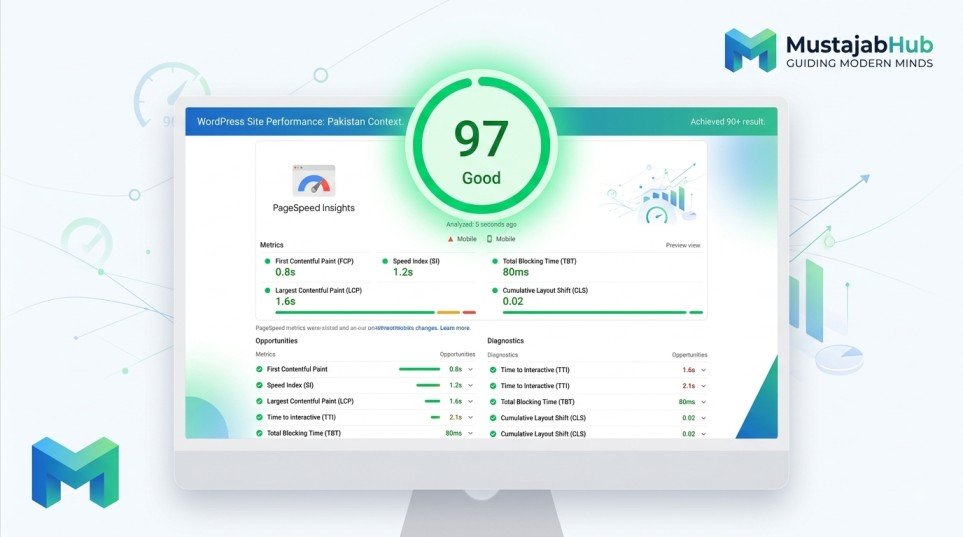
A score of 90+ is therefore a useful performance target.
But 90 is not a magic SEO number.
The more important question is:
Does the website provide a fast, responsive and stable experience for real visitors?
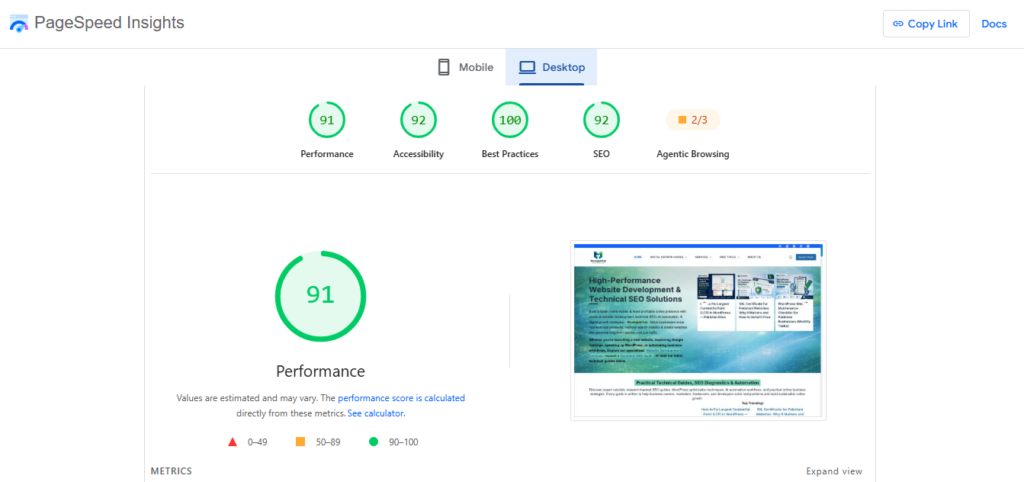
Google’s current Core Web Vitals are:
| Metric | What it measures | Good target |
|---|---|---|
| LCP | Loading performance | ≤ 2.5 seconds |
| INP | Interaction responsiveness | ≤ 200 ms |
| CLS | Visual stability | ≤ 0.1 |
These are evaluated using the relevant field-data methodology at the 75th percentile when sufficient data is available.
PageSpeed Score vs Core Web Vitals: What’s the Difference?
This is one of the most important concepts in website speed optimization.
PageSpeed score: a Lighthouse performance score from a lab test.
Core Web Vitals: user-experience metrics focused on loading, responsiveness and visual stability.
The current Core Web Vitals are:
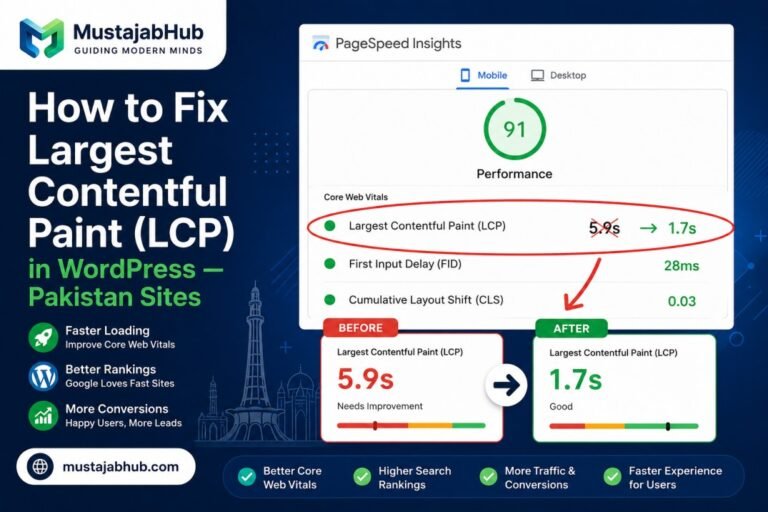
LCP — Largest Contentful Paint
LCP measures when the largest important content element becomes visible.
On a WordPress homepage, this could be:
- a hero image
- a large heading
- a banner
- a featured image
- a major content block
A common good target is 2.5 seconds or less.
INP — Interaction to Next Paint
INP measures how responsive a page is to user interactions.
Heavy JavaScript, third-party scripts, animations and large amounts of client-side processing can make interactions feel slow.
The good threshold is 200 milliseconds or less.
CLS — Cumulative Layout Shift
CLS measures unexpected movement of page elements.
For example, imagine a visitor is about to tap “Contact Us” and an image or advertisement suddenly loads above the button and moves it.
That’s a layout shift.
The good CLS target is 0.1 or less.
Why Pakistani WordPress Websites Can Struggle With Mobile Performance
A WordPress website serving Pakistani customers may need to work well across different:
- mobile devices
- connection speeds
- network conditions
- hosting environments
- browser versions
- screen sizes
A website that feels instant on a developer’s desktop computer may feel completely different on a mid-range smartphone.
This is why your testing process should start with the mobile PageSpeed Insights report, then move into the individual diagnostics.
For Pakistan-focused websites, also pay attention to the physical location of your hosting infrastructure and the geographic distribution of your customers.
If most customers are in Pakistan, server location and origin response time deserve attention. If your business also serves customers in the UAE, UK, United States or other countries, a CDN can help deliver static resources closer to those visitors.
MustajabHub Field Notes: What We Look For During WordPress Speed Audits
In WordPress performance audits, we don’t begin by randomly installing optimization plugins.
We first look for the actual bottleneck.
Common problems include:
- oversized hero images
- unoptimized WebP or AVIF delivery
- unnecessary plugins
- heavy page builders
- excessive JavaScript
- render-blocking CSS
- third-party chat widgets
- tracking scripts
- poorly configured caching
- slow server response
- outdated PHP versions
- excessive database queries
- poorly optimized fonts
- videos loaded directly on the page
- missing image dimensions
- lazy-loading the wrong image
- multiple optimization plugins doing overlapping jobs
The important lesson is simple:
A slow WordPress site does not automatically mean WordPress itself is the problem.
The bottleneck can exist at the server, database, theme, plugin, image, JavaScript, CSS, third-party or delivery layer.
Step 1: Test Your WordPress Website Before Changing Anything
Open Google PageSpeed Insights and enter the exact URL you want to optimize.
Don’t test only your homepage.
Test important page types such as:
- homepage
- service page
- blog post
- contact page
- product page
- category page
- WooCommerce checkout
- landing page
Different templates can have completely different performance characteristics.
Record:
- mobile score
- desktop score
- LCP
- INP
- CLS
- TTFB
- page size
- major opportunities
- major diagnostics
PageSpeed Insights provides both lab and field information when available.
Step 2: Fix Your Largest Contentful Paint
If LCP is poor, find out what the LCP element actually is.
Don’t guess.
PageSpeed Insights can identify the LCP element.
If the LCP element is an image:
- resize it appropriately
- compress it
- use WebP or AVIF where appropriate
- serve a responsive image
- don’t lazy-load the above-the-fold LCP image
- consider appropriate preload/fetch priority where justified
- reduce server and network delays
If the LCP element is text:
- investigate render-blocking CSS
- reduce unnecessary CSS
- check web-font loading
- reduce server response time
- simplify the page structure
The important point is that LCP is an outcome, not a single plugin setting.
Step 3: Optimize Your WordPress Images

Images are one of the easiest places to waste bandwidth.
Before uploading an image:
- Resize it to the dimensions actually required.
- Compress it.
- Use a modern image format when appropriate.
- Avoid uploading a 3,000–5,000px image when the page displays it at a few hundred pixels.
- Use responsive image sizes.
- Lazy-load images below the initial viewport.
- Keep the main LCP image from being unnecessarily delayed.
For example, if a product card displays an image at approximately 400px wide, uploading a huge original photograph and forcing the browser to download it is unnecessary work.
WordPress itself provides image optimization and performance guidance, while current performance guidance also emphasizes correctly prioritizing the LCP image.
Step 4: Don’t Lazy-Load Your Hero Image by Mistake
Lazy loading is useful for images that appear later on the page.
But your most important above-the-fold image may need to load immediately.
A common WordPress mistake is:
“Enable lazy loading for every image.”
That’s not always correct.
If the hero image becomes your LCP element and you delay it unnecessarily, you’re telling the browser to postpone the very resource that determines when the main content becomes visible.
Check the LCP element before applying aggressive lazy-loading rules.
Step 5: Reduce Unnecessary JavaScript
JavaScript can hurt both lab performance and real-world responsiveness.
Start with:
- unused plugins
- unnecessary animation libraries
- sliders
- chat widgets
- social widgets
- tracking scripts
- marketing scripts
- third-party embeds
- unnecessary Elementor widgets
- scripts loaded sitewide when they are needed on only one page
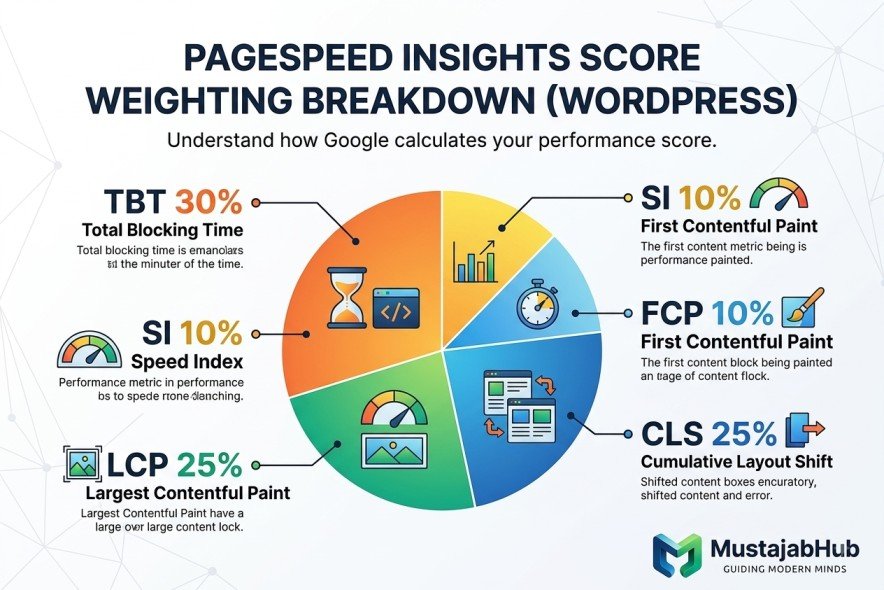
Total Blocking Time is a Lighthouse lab metric that measures how much the browser’s main thread is blocked by long tasks. Google recommends thinking about TBT as a lab proxy and focusing on improving responsiveness, including INP, in real user experiences.
Step 6: Remove Plugins You Don’t Actually Need
Don’t count plugins simply because you want to reach a specific number.
One badly written plugin can cause more performance problems than several lightweight plugins.
Instead ask:
What does this plugin load on the front end?
Check whether the plugin:
- loads CSS
- loads JavaScript
- creates database queries
- makes external requests
- adds tracking
- loads assets on every page
- duplicates functionality already provided by another plugin
If you don’t need it, remove it.
Don’t simply deactivate dozens of plugins and leave them installed forever.
Step 7: Use Page Caching
Caching allows WordPress to serve a prepared version of a page instead of rebuilding everything from scratch for every visitor.
For relatively static pages, page caching can significantly reduce server processing.
WordPress’s official performance documentation recommends caching as an important performance strategy.
Depending on your hosting environment, you may encounter options such as:
- LiteSpeed Cache (Recommended by Mustajabhub)
- WP Rocket (Paid)
- server-side caching
- NGINX caching
- Varnish
- object caching
Don’t install several caching systems simply because someone recommends all of them.
Configure the caching layer that matches your hosting stack.
Step 8: Use a CDN When It Makes Sense
A Content Delivery Network can deliver static resources through geographically distributed edge servers.
This can help reduce network distance between visitors and cached resources.
For a Pakistani business serving customers internationally, a CDN can be particularly useful because your customers may be located in Pakistan, the UAE, UK, Europe, North America or elsewhere.
A CDN isn’t a replacement for good hosting.
Think of it as another layer:
Visitor → CDN → Origin Server → WordPress

For WordPress websites, Cloudflare is one commonly used CDN and security option, but CDN configuration should be tested rather than enabled blindly.
Step 9: Improve TTFB and Server Response Time
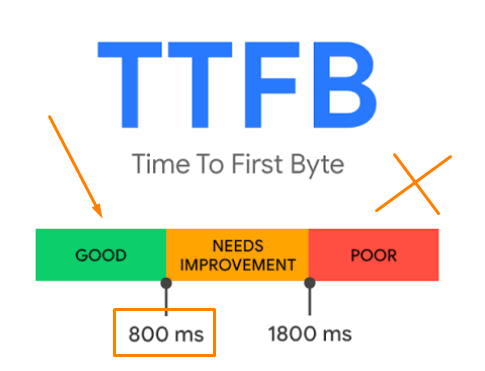
If your server takes too long to begin responding, front-end optimization cannot solve everything.
Check:
- hosting resources
- server location
- PHP version
- database performance
- object caching
- server-side page caching
- DNS
- CDN configuration
- unnecessary redirects
- slow WordPress queries
A useful diagnostic question is:
Is the browser waiting for my server before it can start doing anything useful?
If the answer is yes, investigate TTFB and the server layer before spending hours minifying CSS.
Step 10: Keep PHP and WordPress Updated
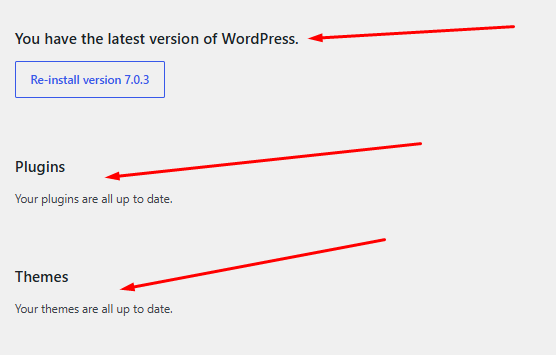
WordPress performance depends on more than your theme and plugins.
Your hosting environment matters too.
Review:
- WordPress version
- PHP version
- database version
- web server
- caching support
- HTTPS
- HTTP/2 or HTTP/3 support where available
Before upgrading a production WooCommerce website or heavily customized WordPress installation, create a backup and test important functionality.
Step 11: Fix Render-Blocking CSS and JavaScript
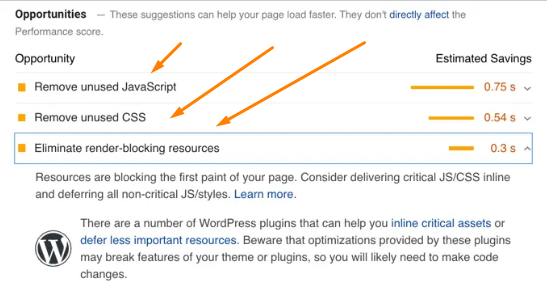
Some CSS and JavaScript resources can delay rendering.
Look at the PageSpeed Insights Opportunities and Diagnostics sections and identify:
- render-blocking resources
- unused CSS
- unused JavaScript
- long JavaScript tasks
- excessive main-thread work
- large network payloads
Don’t blindly enable every optimization checkbox in your caching plugin.
Minification, defer, delay and CSS optimization can break:
- menus
- sliders
- forms
- checkout
- popups
- Elementor widgets
- WooCommerce functionality
Make one significant change at a time and test the website after each change.
Step 12: Optimize Fonts
Fonts can become an overlooked performance problem.
If your website loads several Google Fonts families, multiple weights and several styles, the browser has more work to do.
Ask:
- Do I really need five font weights?
- Can I use two weights?
- Can fonts be served locally?
- Are unnecessary font files loading?
- Is
font-displayconfigured appropriately?
The goal isn’t simply “remove Google Fonts.”
The goal is to reduce unnecessary font requests without damaging your site’s design or readability.
Step 13: Control Third-Party Scripts
Third-party scripts are often overlooked because they don’t belong to WordPress itself.
Examples include:
- Google Analytics
- Google Tag Manager
- Meta Pixel
- live chat
- WhatsApp widgets
- YouTube embeds
- social feeds
- maps
- heatmaps
- review widgets
- advertising scripts
Every external tool has a cost.
Before adding another widget, ask:
Does this feature generate enough business value to justify the performance cost?
For example, a contact page may genuinely need a map, while every blog article probably doesn’t.
Step 14: Be Careful With YouTube and Video Embeds
A video can add significant resources to a page.
Instead of loading a complete video player immediately, consider using a lightweight facade or loading the player only after the visitor chooses to interact with it.
This is particularly useful for:
- homepage videos
- service pages
- tutorials
- long-form guides
The principle is simple:
Don’t download resources for functionality the visitor hasn’t requested yet.
Step 15: Fix Cumulative Layout Shift
CLS often comes from elements that don’t reserve space before they load.
Common causes include:
- images without dimensions
- advertisements
- dynamically injected banners
- web fonts
- sliders
- popups
- cookie notices
- embedded content
- late-loading widgets
Reserve appropriate space for content before it appears.
This becomes especially important if you monetize your site with Google AdSense.
Ads should not be allowed to unexpectedly push your article around as they load.
Step 16: Optimize Your Database Carefully
A WordPress database can accumulate:
- revisions
- expired transients
- spam comments
- unused metadata
- WooCommerce data
- plugin-specific records
Database cleanup can help, but don’t treat it as a magic PageSpeed button.
Always back up the database before running aggressive cleanup operations.
For large WooCommerce websites, investigate database queries and slow operations before deleting data simply because a plugin labels it “optimization.”
Step 17: Don’t Install Five Speed Plugins
This is one of the most common mistakes.
A website might have:
- one caching plugin
- another optimization plugin
- a second image optimizer
- another JavaScript optimizer
- a CDN plugin
- a database optimizer
All of them may attempt to modify the same files.
The result can be:
- broken layouts
- JavaScript errors
- cache conflicts
- stale content
- duplicate optimization
- unpredictable performance
A better approach is:
One layer → test → measure → continue.
Step 18: Test Mobile and Desktop Separately
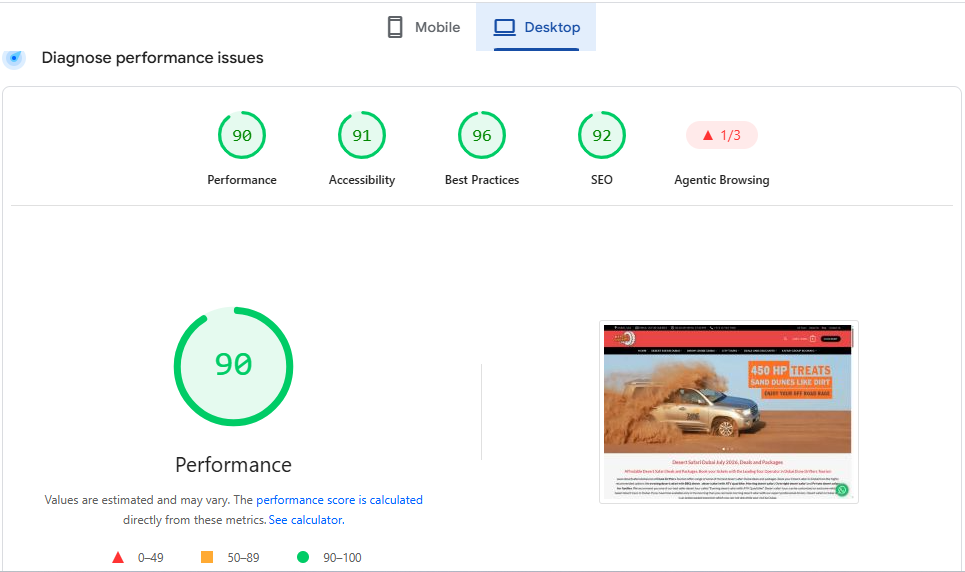
PageSpeed Insights provides separate mobile and desktop analysis.
Don’t assume that a 98 desktop score means your website is fast for mobile visitors.
Mobile testing can expose problems caused by:
- slower processors
- JavaScript-heavy themes
- large images
- excessive network requests
- third-party scripts
- layout problems
- poor responsive design
Lighthouse itself explains that its mobile performance testing is intended to represent a typical mobile experience rather than simply reproducing the conditions of a developer’s desktop machine.
Step 19: Check Google Search Console
PageSpeed Insights is not the only place to monitor website performance.
Open:
Google Search Console → Core Web Vitals
Look for:
- Poor URLs
- URLs needing improvement
- Good URLs
- mobile issues
- desktop issues
- URL groups affected by the same template
The important advantage of Search Console is that it helps you understand your site’s real-user performance rather than relying entirely on a single laboratory test.
PageSpeed Insights and CrUX field data use a trailing 28-day period for the relevant field measurements, so improvements in real-user data don’t necessarily appear immediately after you make a change.
Step 20: Retest After Every Major Optimization
Don’t do this:
Change 15 settings → run PageSpeed → hope for the best.
Do this:
Baseline → one optimization layer → test → compare → keep or revert → next optimization.
A simple performance log: (Sample Table)
| Test | Mobile | LCP | INP | CLS | TTFB |
|---|---|---|---|---|---|
| Before optimization | ___ | ___ | ___ | ___ | ___ |
| After images | ___ | ___ | ___ | ___ | ___ |
| After caching | ___ | ___ | ___ | ___ | ___ |
| After JS cleanup | ___ | ___ | ___ | ___ | ___ |
| Final test | ___ | ___ | ___ | ___ | ___ |
Only fill these numbers with your actual measurements.
A Realistic 90+ PageSpeed Optimization Workflow
If I (MustajabHub) were optimizing a Pakistani WordPress business website from scratch, I would generally work in this order:
Phase 1 — Measure
- PageSpeed Insights mobile
- PageSpeed Insights desktop
- Google Search Console Core Web Vitals
- GTmetrix waterfall
- WebPageTest if deeper testing is needed
Phase 2 — Fix the biggest bottleneck
- Server response / TTFB
- LCP element
- Hero image
- JavaScript
- caching
Phase 3 — Clean the front end
- Remove unnecessary plugins
- Remove unused CSS/JS
- Optimize fonts
- Reduce third-party scripts
- optimize images
- fix CLS
Phase 4 — Delivery
- CDN
- browser caching
- compression
- HTTP/2 or HTTP/3 where supported
Phase 5 — Validate
- Retest PageSpeed
- Test important templates
- Test forms
- Test WooCommerce checkout
- Check Search Console
- Monitor real-user Core Web Vitals
This workflow is much safer than chasing every PageSpeed recommendation individually.
Before and After: Use Your Own Real Test
Real MustajabHub test:
MustajabHub Before-and-After PageSpeed Test
Website type: Pakistani service business
Platform: WordPress
Page tested: Homepage
Test location: PageSpeed Insights
Date: 10-07-26
| Metric | Before | After |
|---|---|---|
| Mobile Performance | 60 | 85 |
| Desktop Performance | 80 | 95 |
| LCP | 4.5s | 0.6s |
| INP | 860ms | 210ms |
| CLS | 2.6 | 0.019 |
| TTFB | 3090ms | 650ms |
| Page size | 8.7 mb | 1.80mb |
What we changed
- Images
- Builder Gutenberg Multiple Containers and empty sections
- Theme Customization
- Plugins conflicts
- Main Layout Structure
- Minify CSS and JS
- Apply CDN
[actual optimization]
[actual optimization]
[actual optimization]
[actual optimization]
What we did not change
- Theme: Light weight theme Like Astra
- Hosting: Best in Pakistan Hostinger
- Page builder: Gutenberg
Why Your PageSpeed Score Can Change Between Tests
Don’t panic if you get:
91 → 87 → 94 → 89
without changing anything.
Lighthouse scores can vary because of network conditions, server load, browser conditions and other environmental factors.
Google’s Lighthouse documentation specifically warns that performance scores naturally fluctuate and recommends consistent testing conditions and multiple runs before drawing conclusions.
For serious testing, run several tests and compare patterns instead of treating one number as absolute truth.
Can You Reach 90+ Without Changing Hosting?
Sometimes.
If the problem is:
- huge images
- unnecessary plugins
- poor caching
- excessive JavaScript
- render-blocking assets
- third-party scripts
you may be able to achieve a major improvement without changing hosts.
But if your origin server consistently responds slowly, changing image formats alone won’t solve the underlying problem.
At that point investigate:
- hosting resources
- server location
- PHP
- database
- object cache
- server-level cache
- CDN
- traffic spikes
Elementor vs Gutenberg and PageSpeed
Your page builder matters, but it shouldn’t become an excuse.
Elementor, Gutenberg and other WordPress building approaches can produce fast or slow pages depending on:
- DOM structure
- CSS
- JavaScript
- widgets
- animations
- images
- plugins
- theme
- caching
- hosting
A lightweight Gutenberg site can be fast.
A carefully optimized Elementor site can also be fast.
The correct question isn’t:
“Which builder is automatically fastest?”
It’s:
“Which implementation produces the best experience for this website’s requirements?”
For a deeper comparison, read this article Elementor vs Gutenberg for Pakistani Business Websites guide.
What About WooCommerce?
WooCommerce websites require additional testing.
Don’t test only:
- homepage
Also test:
- shop
- product page
- category
- cart
- checkout
- account page
Dynamic functionality can prevent some pages from being cached in the same way as static pages.
Never enable aggressive caching or JavaScript delay settings on a WooCommerce website without testing:
- add to cart
- cart updates
- checkout fields
- payment gateway
- login
- account functionality
A beautiful 95 PageSpeed score isn’t useful if the checkout button doesn’t work.
Should You Aim for 100/100?
No.
A 100/100 score looks impressive, but it isn’t the purpose of performance optimization.
Google itself describes 90–100 as the “Good” range and notes that a perfect 100 is extremely difficult and not expected.
Once your website is fast, stable and provides good Core Web Vitals, spending hours moving from:
97 → 100
may provide much less business value than improving:
- conversion rate
- service-page content
- internal linking
- accessibility
- product usability
- checkout
- lead forms
- technical SEO
- content quality
Common WordPress PageSpeed Mistakes
Mistake 1: Chasing 100 instead of fixing the real problem
Better: prioritize user experience and Core Web Vitals.
Mistake 2: Installing multiple caching plugins
Better: use one appropriate caching strategy.
Mistake 3: Lazy-loading everything
Better: identify the LCP image first.
Mistake 4: Optimizing only desktop
Better: start with mobile.
Mistake 5: Keeping unused plugins
Better: remove functionality you don’t need.
Mistake 6: Ignoring third-party scripts
Better: audit analytics, chat, social, video and advertising scripts.
Mistake 7: Changing everything at once
Better: make controlled changes and test each layer.
Mistake 8: Assuming PageSpeed equals SEO
Better: combine technical performance with useful content, crawlability, relevance, authority and user experience.
Quick 90+ WordPress PageSpeed Checklist
Copy this checklist into your maintenance workflow:
□ Test mobile PageSpeed Insights
□ Test desktop PageSpeed Insights
□ Record LCP
□ Record INP
□ Record CLS
□ Check TTFB
□ Identify the LCP element
□ Optimize the LCP image
□ Convert appropriate images to WebP/AVIF
□ Resize oversized images
□ Enable appropriate page caching
□ Remove unused plugins
□ Remove unnecessary JavaScript
□ Reduce third-party scripts
□ Optimize CSS delivery
□ Check fonts
□ Fix layout shifts
□ Avoid lazy-loading the LCP image
□ Use CDN where appropriate
□ Check server response time
□ Review PHP and hosting environment
□ Check database performance
□ Test important forms
□ Test WooCommerce functionality
□ Review Search Console Core Web Vitals
□ Retest after major changes
Frequently Asked Questions
Is a 90+ PageSpeed score really necessary, or is 70 fine?
A score of 90 or higher is Google’s own definition of “good,” but strong Core Web Vitals field data at 75 can outperform a shaky 95 lab score. Aim for 90+, but don’t panic over small variations once your Core Web Vitals pass.
Why is my mobile score so much lower than desktop?
PageSpeed simulates a mid-range Android phone on a throttled connection for mobile tests, which is intentionally stricter than the desktop simulation — this gap is normal, not a sign something’s broken.
Can I reach 90+ without changing hosting?
Often yes, through image optimization, plugin cleanup, and caching — but if your server response time itself is the bottleneck, hosting becomes the limiting factor no other fix can fully overcome.
Does the PageSpeed score directly affect my Google ranking?
Not directly — Google uses real-user Core Web Vitals field data (CrUX) as the ranking signal, not the lab score itself. The score is a useful diagnostic tool, though, since improving it usually improves the real-world data too.
What are the Core Web Vitals in 2026?
The current Core Web Vitals are LCP, INP and CLS. Good thresholds are LCP ≤ 2.5 seconds, INP ≤ 200 milliseconds and CLS ≤ 0.1.
Which WordPress plugin is best for PageSpeed?
There is no universal “best” plugin. The correct choice depends on your hosting stack, theme, page builder, CDN and website functionality. WordPress performance should be treated as a system rather than a single-plugin problem.
Does Elementor make WordPress slow?
Not automatically. Elementor can add additional CSS, JavaScript and DOM complexity, but the actual performance depends on how the website is built and optimized.
Should I use Cloudflare for WordPress speed?
Cloudflare can provide CDN, caching, DNS and security capabilities, but configuration matters. It should complement your WordPress hosting rather than replace proper server-side optimization.
How long does it take to improve a PageSpeed score?
A simple business website may show meaningful improvements within a few hours if the main problems are obvious. More complex WooCommerce or Elementor websites can require considerably more testing.
Why does my PageSpeed score change every time I test?
Performance tests have natural variability. Server load, network conditions and other factors can change the result even when your website code has not changed. Run multiple tests under consistent conditions before evaluating a change.
What Pakistani Business Owners Should Actually Optimize
If your customers are primarily in Pakistan, India, Bangladesh or in Asia, don’t just optimize for an imaginary “perfect score.”
Optimize for the people who actually use your website.
That means testing:
- mobile devices
- service pages
- contact forms
- WhatsApp buttons
- product pages
- checkout
- local customers
- international visitors if applicable
A website that scores 98 but loses leads because the contact form doesn’t work is not a successful website.
A website that scores 88, passes its important Core Web Vitals, loads quickly for its customers and generates enquiries can be far more valuable.
Performance is a business metric, not just a green circle.
MustajabHub’s Practical Recommendation
For most Pakistani WordPress business websites, our approach is:
Measure → Diagnose → Fix → Test → Verify → Monitor.
We don’t recommend changing hosting, installing a dozen optimization plugins or rebuilding an entire website simply because PageSpeed displays a low number.
First identify the bottleneck.
It may be the hero image.
It may be JavaScript.
It may be a plugin.
It may be the server.
It may be third-party code.
It may be a page builder.
Or it may be several smaller problems working together.
The goal is not to make the PageSpeed report look pretty.
The goal is to make the website faster, more responsive, more stable and more useful to real customers.
Our PageSpeed Testing Method
How MustajabHub tests WordPress performance
We don’t treat a single PageSpeed score as a final verdict. For our performance reviews, we compare multiple measurements and investigate the underlying cause of slow loading.
Our typical workflow includes Google PageSpeed Insights for Lighthouse lab diagnostics and available field data, Google Search Console for Core Web Vitals reporting, and additional waterfall testing when deeper investigation is required.
We record the baseline before making changes, apply optimizations in controlled stages, and then compare the results.
This approach helps distinguish a genuine performance improvement from a temporary change in a laboratory test.
This is far more valuable for E-E-A-T than saying “we are experts.”
Who This Guide Is For
This guide is designed for:
- Pakistani small-business owners running WordPress
- WooCommerce store owners
- Elementor users
- Gutenberg users
- WordPress developers
- SEO professionals
- freelancers managing client websites
- agencies troubleshooting Core Web Vitals
- businesses serving Pakistani and international customers
- website owners preparing a site for Google AdSense
Need Help Finding What’s Slowing Your WordPress Website?
If your WordPress website is still slow after basic optimization, a proper performance audit can identify whether the problem comes from hosting, images, plugins, JavaScript, CSS, database queries, page-builder output or third-party services.
MustajabHub provides WordPress speed optimization and technical SEO services for businesses in Pakistan and international clients.
Instead of guessing which plugin to install next, start with a baseline test and identify the actual bottleneck.
Not Sure Where to Start?
If you’re unsure which fix will move your score fastest, a real diagnostic beats guessing every time. Our WordPress speed optimization service identifies your exact bottlenecks — whether that’s plugins, images, hosting, or render-blocking code — and fixes them directly. Request a free PageSpeed audit here or get in touch to discuss your site.
For further technical detail, Google’s own PageSpeed Insights tool is where every test in this guide should start, and the web.dev performance scoring guide explains exactly how the weighted score is calculated.
About the Author
Rana Umar is a content writer and technical SEO writer at MustajabHub, where he covers WordPress performance, Core Web Vitals, technical SEO and website development for Pakistani business owners.
His performance recommendations are based on website testing, technical audits and practical WordPress implementation rather than generic plugin lists.
Editorial note: Performance recommendations can change as WordPress, browsers, Lighthouse and Google’s measurement systems evolve. This guide should be reviewed periodically against official documentation.
Read More Related Topics Here:
Elementor vs Gutenberg Pakistan | WordPress Website Development Cost in Gujranwala | WordPress vs Custom Website Pakistan | Technical-seo-audit-checklist | Why-is-my-wordpress-website-slow | how to get Google AdSense approved in Pakistan | ssl-certificate-pakistan-website | fix-lcp-wordpress-pakistan | cloudflare-setup-wordpress-pakistan