


Quick answer: An SSL certificate for a Pakistani website encrypts the data between your visitors and your server, removes the “Not Secure” browser warning, and gives you a small but real Google ranking boost. The good news: you don’t need to pay for one—Let’s Encrypt provides a legitimate SSL certificate for free, and most Pakistani hosting providers can install it in a few clicks.
If your website URL starts with “http://” instead of “https://,” or your visitors ever see a red “Not Secure” warning, this guide fixes that today—for free, and without needing to hire a developer for a routine setup.
What an SSL Certificate Actually Does
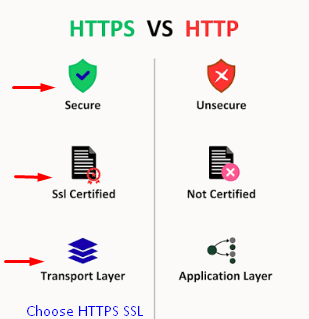
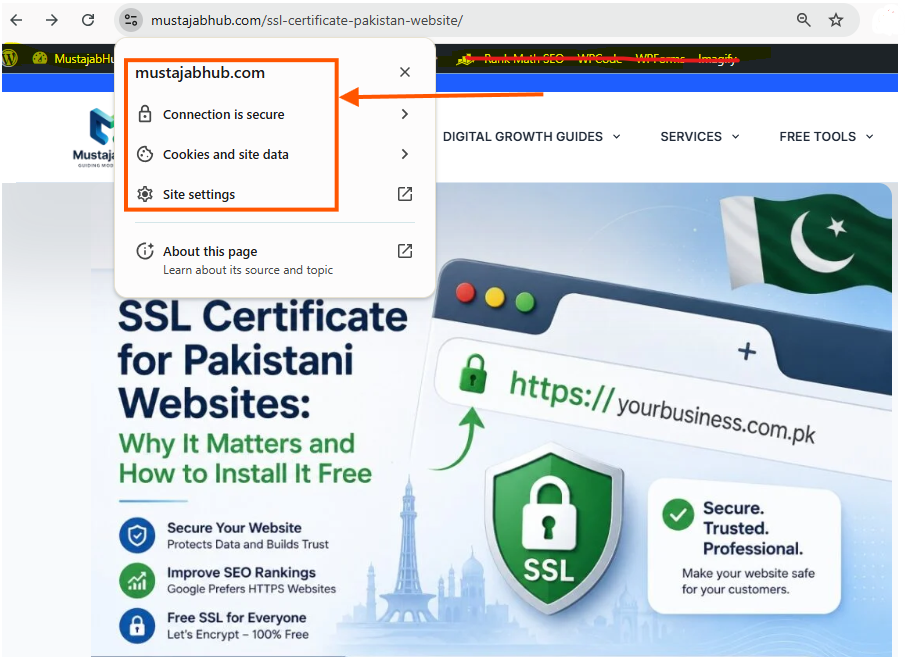
An SSL certificate encrypts the data exchanged between your visitors and your server. When installed correctly, your site’s URL switches from http:// to https://, and browsers show a padlock icon confirming the connection is secure. Every time someone submits a contact form, enters a phone number, or checks out on your site, that information is either protected or exposed—SSL is what decides which one.
This matters for practical, everyday reasons for any Pakistani website:
- Security: It encrypts sensitive data like login credentials, personal information, and payment details, protecting both your business and your customers.
- Trust: Browsers show a padlock icon on secure sites and actively warn visitors away from sites without SSL, which scares off potential customers fast.
- Rankings: Google uses HTTPS as a ranking signal, meaning an SSL certificate for your Pakistani website gives you a small but confirmed advantage over competitors still running on plain HTTP.
How to Check Whether Your SSL Certificate Is Installed Correctly
Installing an SSL certificate is only the first step. Before assuming everything is secure, verify that HTTPS is working correctly across your entire website.
We recommend checking these items after every SSL installation:
✔ Visit your homepage in an incognito browser.
✔ Confirm the browser displays the padlock icon.
✔ Make sure the URL automatically redirects from:
to
✔ Check that every important page (Home, Services, Blog, Contact) loads using HTTPS.
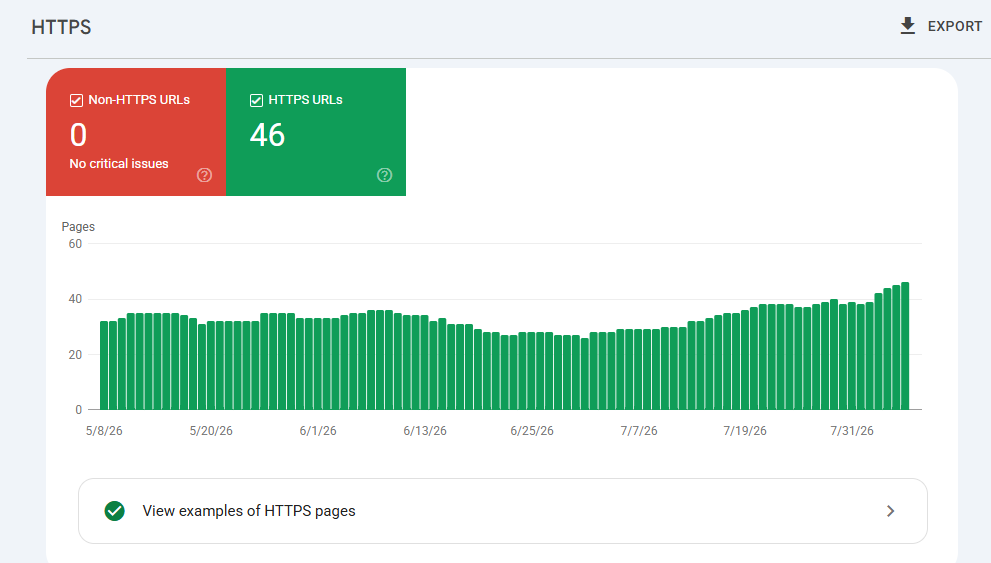
✔ Open Google Search Console and review the HTTPS Report for indexing issues.
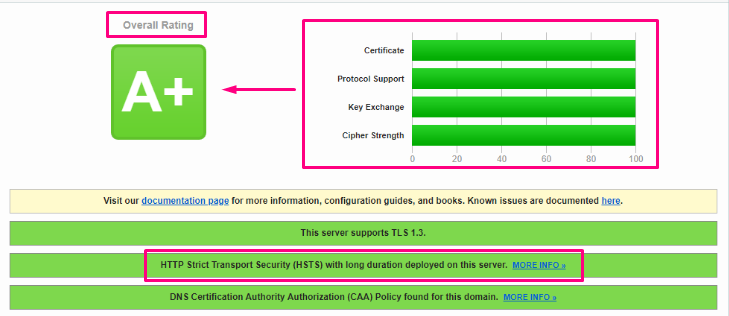
✔ Run your website through SSL Labs Server Test to verify the certificate chain and security configuration.
✔ Check that images, CSS files, JavaScript files, fonts, and videos are all loading through HTTPS instead of HTTP.
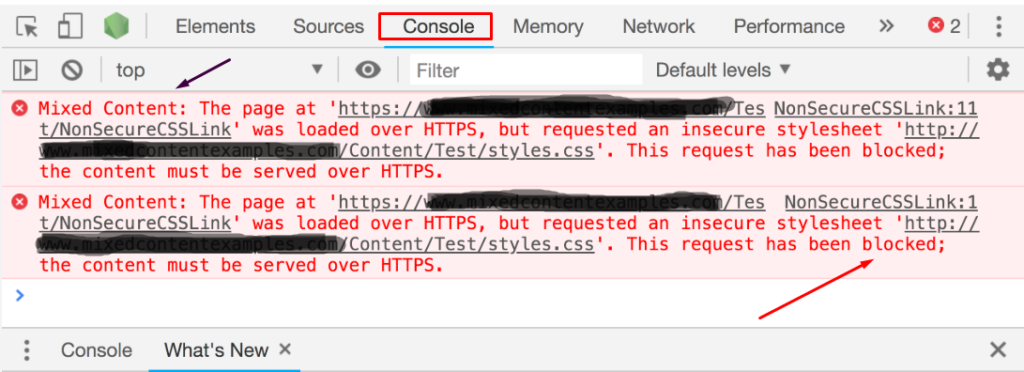
If even one important resource still loads through HTTP, browsers may display mixed-content warnings even though SSL is installed. Google recommends resolving these issues so users consistently receive a secure browsing experience
MustajabHub Field Notes: What We Find on Pakistani Business Sites
During audits of small business websites across Pakistan, missing or misconfigured SSL comes up more often than expected:
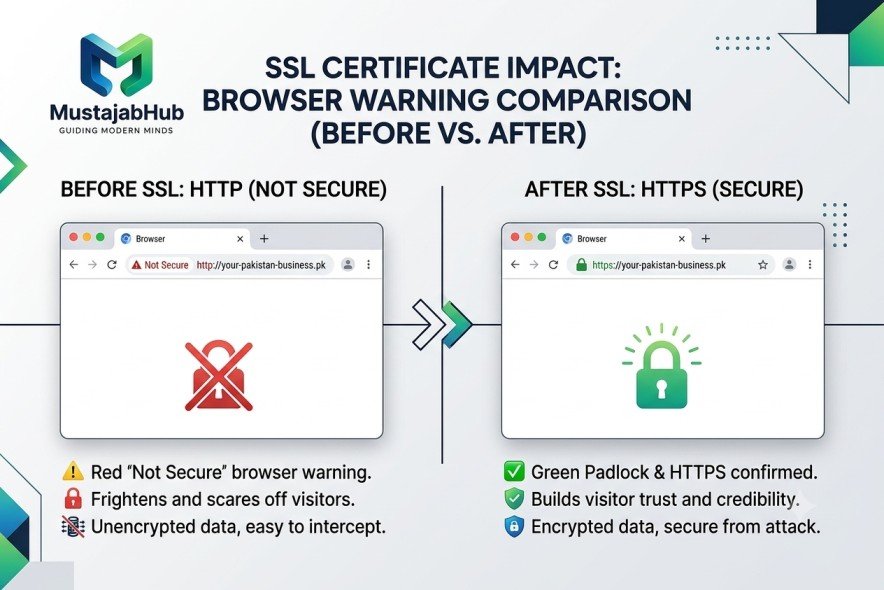
✓ Some sites have SSL installed but still load certain pages over HTTP, triggering “mixed content” warnings.
✓ Contact forms on non-HTTPS pages actively scare away visitors who’ve been trained to look for the padlock.
✓ A few sites had SSL certificates that expired silently because nobody set up auto-renewal.
✓ Several store owners assumed SSL was a paid add-on and simply skipped it, unaware a free option existed.
That last point is the most common—and the easiest to fix.
Do You Need to Pay for an SSL Certificate?
No. This is the most common misconception among Pakistani business owners. Let’s Encrypt is a nonprofit certificate authority that provides free SSL certificates to help websites create secure, encrypted connections, and it allows website owners to automatically obtain and renew certificates without needing to purchase one from a paid provider. Paid SSL certificates exist and offer extra features for large enterprises, but for the overwhelming majority of business websites, a free Let’s Encrypt certificate provides the exact same encryption strength and ranking benefit.
How to Install a Free SSL Certificate on Your Pakistani Website
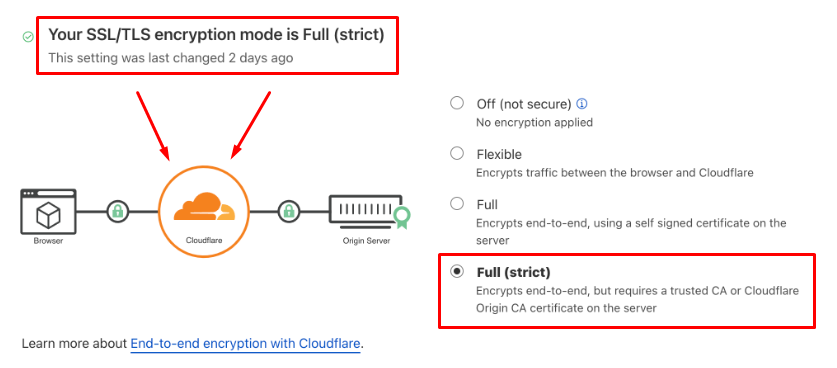
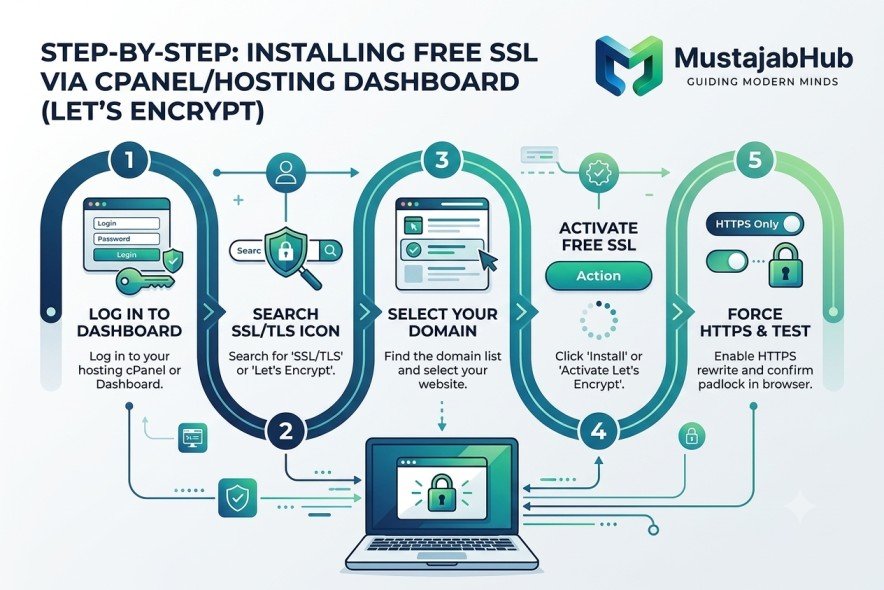
Step 1: Check if your host already includes it. Many hosting providers offer built-in free SSL via Let’s Encrypt directly from the hosting dashboard—this is the easiest and fastest route, often requiring just one click.
Step 2: Enable it from your hosting control panel. Log into your cPanel or hosting dashboard, look for “SSL/TLS” or “Let’s Encrypt,” and activate it for your domain.
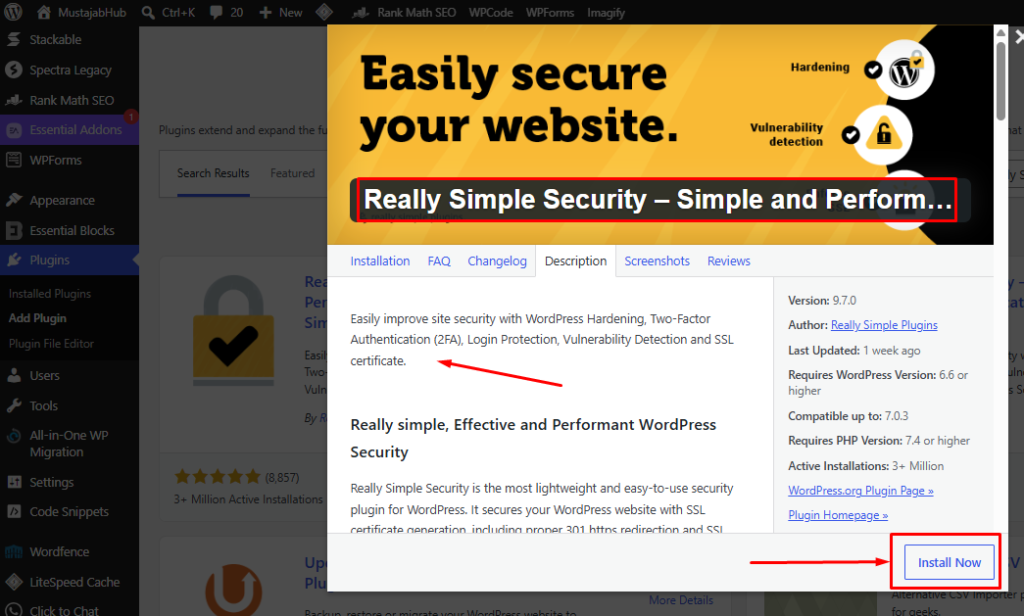
Step 3: Force HTTPS across your entire site. Enabling SSL alone isn’t enough—you need to redirect all traffic to the secure version. A plugin like Really Simple Security handles this redirect for WordPress sites without needing manual code changes.
Step 4: Check for mixed content warnings. After activating SSL, some older images or scripts may still load over HTTP. A security plugin can flag & fix these automatically.
Step 5: Set a renewal reminder. Let’s Encrypt certificates expire every 90 days, with renewal recommended 30 days before expiry. Most modern hosts auto-renew this, but it’s worth confirming rather than assuming.
SSL Setup Checklist
□ Confirm the hosting provider offers free SSL via Let’s Encrypt.
□ Activate SSL from the hosting control panel.
□ Install a redirect plugin to force HTTPS sitewide.
□ Scan for and fix mixed content warnings.
□ Confirm auto-renewal is active (or calendar a 90-day reminder).
□ Test the site in an incognito browser to confirm the padlock shows correctly.
Example: Before and After Installing SSL
| Metric | Before SSL | After SSL |
|---|---|---|
| Browser Warning | “Not Secure” shown | Padlock, secure connection |
| Mixed Content Issues | Multiple flagged | Fixed |
| Google Ranking Signal | Missing | Present (HTTPS confirmed) |
The Most Common SSL Problems We Find During Website Audits
Installing an SSL certificate doesn’t automatically guarantee a secure website. During website audits, we regularly see issues like:
• HTTPS enabled but HTTP pages are still accessible.
• Missing 301 redirects.
• Mixed content caused by old image URLs.
• Expired certificates because auto-renewal was never enabled.
• Incorrect WordPress Address (URL) settings.
• SSL installed only on the homepage instead of the full website.
• Canonical URLs still pointing to HTTP.
• XML sitemaps containing HTTP links.
• Google Search Console is still indexing HTTP pages.
Most of these problems take only a few minutes to fix, but they can leave visitors with browser warnings or prevent Google from preferring the HTTPS version of your pages.
What an SSL Certificate Does NOT Protect You From
An SSL certificate encrypts data while it travels between a visitor’s browser and your website.
However, SSL alone does not protect your website against:
• malware infections
• hacked WordPress plugins
• weak administrator passwords
• phishing attacks
• brute-force login attempts
• SQL injection vulnerabilities
• insecure hosting
That’s why SSL should be combined with regular WordPress updates, strong passwords, website backups, firewall protection, and ongoing security monitoring.
Mini Case Study: A Service Business Losing Form Submissions
A local services business had a functioning WordPress site, but it was still running on plain HTTP. During an audit, we noticed that mobile visitors were seeing a browser warning before reaching the contact form, and a noticeable share left the page without submitting anything. After installing a free Let’s Encrypt certificate & forcing HTTPS sitewide, the warning disappeared, and form submissions increased within the following weeks—a direct result of visitors no longer being scared off before they even read the page.
Don’t Do This
- Don’t pay for an SSL certificate before checking whether your host already offers one free.
- Don’t install SSL and stop there—always force the HTTPS redirect, or visitors can still land on the insecure version.
- Don’t ignore mixed content warnings; an unlocked padlock icon undermines the entire point of having SSL.
- Don’t forget renewal—an expired certificate triggers the exact same “Not Secure” warning you were trying to avoid.
Comparison Table
| Feature | Free SSL | Paid SSL |
|---|---|---|
| Encryption | Same | Same |
| Google Ranking | Same | Same |
| Warranty | No | Yes |
| Validation | DV | DV/OV/EV |
| Business Trust | Standard | Higher for enterprise |
MustajabHub Insight
The biggest mistake we see isn’t skipping SSL entirely—most sites have it now. It’s installing it once and never checking again. An expired or partially configured certificate looks identical to having no SSL at all from a visitor’s perspective, which defeats the entire purpose.
Time Estimate
| Task | Time Needed |
|---|---|
| Checking host SSL support | 5 minutes |
| Activating SSL | 5–10 minutes |
| Forcing HTTPS redirect | 10–15 minutes |
| Fixing mixed content | 15–30 minutes |
| Total | Under 1 hour |
Questions Pakistani Business Owners Actually Ask
Does SSL really affect Google rankings, or is that overstated?
It’s a real, confirmed ranking signal, though a minor one compared to content quality & site speed. Google uses HTTPS as one of many ranking factors, so it’s worth having but won’t single-handedly fix poor rankings.
My site shows a padlock but visitors still see warnings sometimes — why?
This usually means mixed content — some images, scripts, or forms are still loading over HTTP even though the main page uses HTTPS. A security plugin can detect and fix this.
Can I install SSL myself without a developer?
Yes, if your host offers built-in Let’s Encrypt support, which most do. It typically takes under an hour, including testing.
What happens if my SSL certificate expires?
Visitors will see the same “Not Secure” warning as having no SSL at all, & some browsers may block the page entirely. Auto-renewal prevents this—check that it’s active.
Who This Guide Is For
This guide is written for:
✓ Small business owners still running an HTTP-only website
✓ Online store owners handling customer payment information
✓ Anyone who’s seen a “Not Secure” warning on their own site
✓ Website owners unsure if SSL costs money
Not Sure Where to Start?
If you’re unsure whether your site’s SSL is properly installed, fully configured, or affecting your rankings, a quick technical check clears that up fast. Our web development team can review your current setup as part of a broader site health check, and if speed or security issues turn up alongside SSL gaps, our technical SEO fix service addresses both together. Request a free site review here or get in touch directly.
For further technical detail, Let’s Encrypt’s official documentation explains exactly how free certificate issuance works, & Google’s Search Central guidance on HTTPS confirms how it factors into search rankings.
About the Author Rana Umar is a content writer and web security writer at MustajabHub, where he covers practical website security and technical SEO topics for Pakistani business owners. He writes from real site audits, focusing on fixes business owners can actually implement themselves.
Read More About : Technical-seo-audit-checklist | Why-is-my-wordpress-website-slow | how to get Google AdSense approved in Pakistan



Bom conteúdo. Recomendo Mustajabhub