

Quick answer: To fix LCP in WordPress, first identify the actual Largest Contentful Paint element in Google PageSpeed Insights. Then determine which part of the LCP timeline is slow: Time to First Byte (TTFB), resource load delay, resource load duration, or element render delay. For image-based LCP, use the correct dimensions and modern formats such as WebP or AVIF, avoid lazy-loading the above-the-fold LCP image, and give the browser an appropriate loading priority. If TTFB is the bottleneck, improve WordPress caching, hosting, database performance and CDN delivery instead.
For Pakistani businesses, always test the mobile experience as well as desktop. A website that feels fast on a developer’s computer can still perform poorly for visitors using mobile networks or lower-powered phones.
If you’ve run your site through PageSpeed Insights & seen a red or orange LCP number, A poor LCP can contribute to a weak page experience. Google uses Core Web Vitals in its ranking systems, but a good LCP score does not guarantee higher rankings. This guide walks through exactly how to fix LCP in WordPress — including the mistakes specific to how most Pakistani businesses host and build their sites, which most generic international guides never mention.
If you’re searching fix LCP wordpress Pakistan, you’re usually in one of these situations:
- Your WordPress website looks fine, but mobile PageSpeed is terrible.
- Search Console says your pages are “Poor” for LCP.
- Your hero section takes forever to appear, especially on phones.
- A developer told you “install a speed plugin,” but LCP still stays above 4 seconds.
Table of Contents
How We Tested and Researched This Guide
This guide combines Google Search Central and web.dev documentation with WordPress Core performance documentation and practical WordPress performance audits.
For individual website recommendations, we use Google PageSpeed Insights, Lighthouse, Chrome DevTools and Google Search Console. Lab results are used for debugging, while Search Console and Chrome UX Report data are used to understand real-user Core Web Vitals where sufficient data exists.
Performance results vary by page, hosting environment, device, network and implementation. Therefore, the before-and-after numbers shown in this article should be treated as project-specific examples rather than guaranteed results for every WordPress website.
What Is Largest Contentful Paint (LCP)?
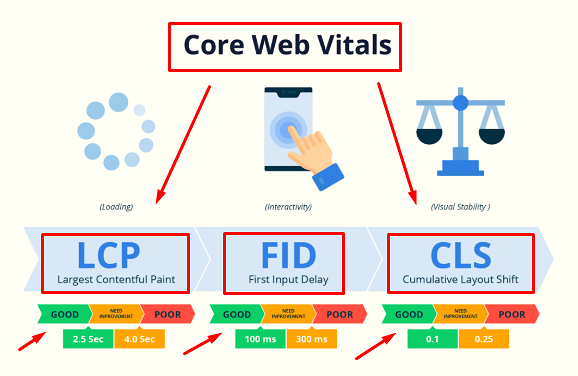
Largest Contentful Paint (LCP) is one of Google’s three current Core Web Vitals.
It measures how long it takes the largest visible content element in the initial viewport to render.
Depending on the page, that element could be:
- a large hero image
- a featured image
- a product image
- a large heading
- a text block
- a video poster image
- a background image or other visual element
Google recommends an LCP of 2.5 seconds or less for a good user experience at the 75th percentile of page loads. More than 4 seconds is considered poor.
The important point is that LCP isn’t simply “how long the whole website takes to load.”
A page can continue loading JavaScript, analytics, images and other resources after the LCP has happened.
LCP is asking a more practical question:
How quickly does the main content become visible to the visitor?
What Are the Current Core Web Vitals?
LCP is only one part of the performance picture.
Google currently uses three Core Web Vitals:
| Metric | What it measures | Good target |
|---|---|---|
| LCP | Loading performance | ≤ 2.5s |
| INP | Responsiveness | < 200ms |
| CLS | Visual stability | < 0.1 |
This matters because a WordPress website can have a good LCP while still suffering from poor INP because of heavy JavaScript, or poor CLS because images, fonts or advertisements do not reserve enough space. So don’t optimize LCP in isolation.
Does LCP Affect Google Rankings?
Yes, but there is an important distinction.
Google includes Core Web Vitals in its ranking systems, but passing Core Web Vitals does not guarantee that a page will rank at the top of Google.
Google evaluates many signals, including relevance, content quality, helpfulness, links, technical accessibility and overall page experience.
So don’t think:
“LCP under 2.5 seconds = #1 ranking.”
Think:
“A fast, stable and responsive website removes an important technical weakness while improving the experience for real visitors.”
For a Pakistani business website, that can matter beyond SEO. If a visitor is trying to call your business, submit a form, browse services or complete a WooCommerce purchase, getting the main content on screen quickly reduces unnecessary friction.
Why Pakistani WordPress Websites Can Have LCP Problems
There isn’t one “Pakistan LCP problem.”
The causes are usually technical.
However, businesses targeting customers in Pakistan should test their websites under the conditions their visitors actually experience.
For example, check:
- mobile performance
- lower-powered Android devices
- mobile network conditions
- server response time
- CDN coverage
- image size
- page-builder output
- third-party scripts
- WordPress plugins
- theme assets
- font loading
A business in Lahore, Karachi, Islamabad, Rawalpindi, Faisalabad, Gujranwala or another Pakistani city should not assume that a desktop test performed on a fast office connection represents every visitor.
Your real objective is not to achieve an impressive screenshot.
It is to make the actual customer journey faster.
| Cause | Why It Hurts LCP |
|---|---|
| Oversized hero image | Browser has to download a huge file before it can display it |
| Lazy loading the LCP element | The browser waits for JavaScript to run before even starting the image download |
| Slow server response (TTFB) | Nothing can render until the server sends the first byte of data |
| Render-blocking CSS/JS | The browser pauses rendering until these files finish loading |
| Heavy theme/page builder markup | More code for the browser to process before painting the page |
| Too many active plugins | Each one can add its own CSS or JavaScript, stacking delays |
Before Fixing LCP, Find Out What Is Actually Slow
This is where many WordPress owners waste time.
They install another caching plugin.
Then another image optimization plugin.
Then another “speed booster.”
But they never identify the LCP element.
Don’t start there.
Start with Google PageSpeed Insights.
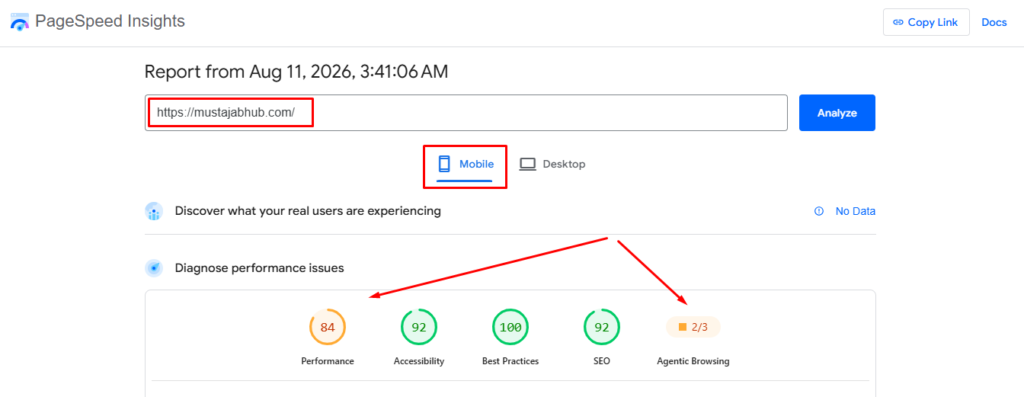
Run the exact page you want to improve.
Look for:
Largest Contentful Paint element
This tells you what Google identified as the LCP element.
It might be:
- an
<img> - a hero image
- a featured image
- a heading
- a text block
- a background image
- a video poster
Once you know the element, you can diagnose the correct problem.
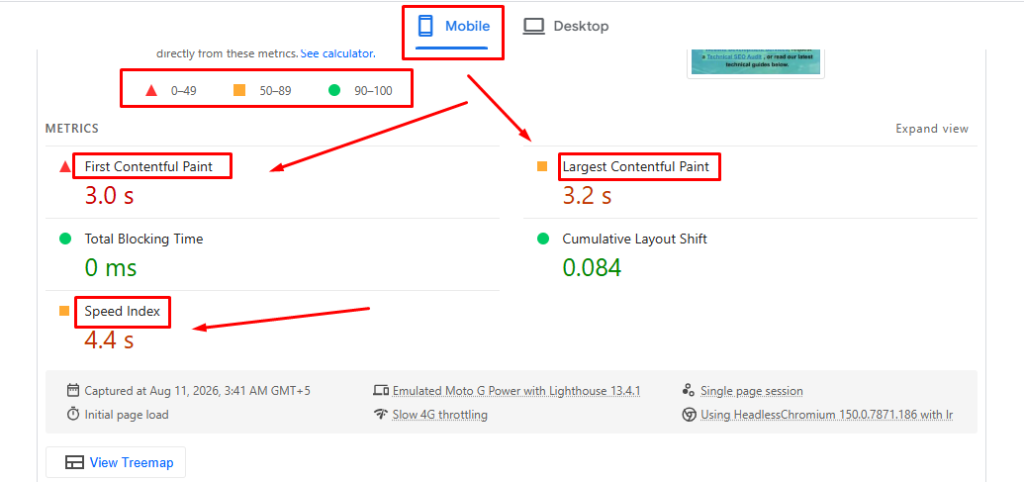
Lab Data vs Field Data: Which LCP Should You Trust?
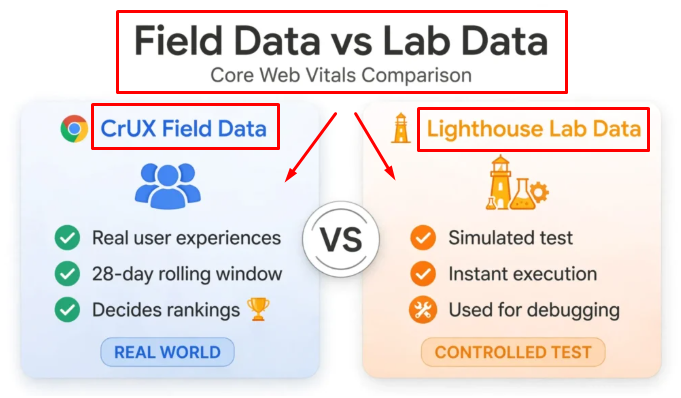
This distinction is extremely important.
Lab data
Lab data is produced by a controlled test such as Lighthouse or the PageSpeed Insights test environment.
It is useful for:
- debugging
- identifying opportunities
- comparing changes
- finding render-blocking resources
- examining the LCP element
- testing optimization changes
But the result can change between tests because the testing environment and network conditions vary.
Field data
Field data comes from real user experiences.
Google’s Chrome UX Report (CrUX) and the Core Web Vitals report in Google Search Console provide real-world performance information when enough data is available.
Search Console groups real-user performance data and reports LCP, INP and CLS for qualifying URL groups.
My rule for Pakistani business websites
Use:
PageSpeed Insights → diagnose
and:
Search Console → monitor real-world performance
Don’t confuse a single laboratory score with the performance of every visitor.
The Four Parts of LCP You Need to Understand
This is one of the most useful ways to troubleshoot LCP.
Google breaks LCP into four parts:
- Time to First Byte (TTFB)
- Resource Load Delay
- Resource Load Duration
- Element Render Delay
These four components make up the complete LCP timeline.
Think of it like this:
Server responds → browser discovers LCP resource → resource downloads → browser renders it
If one stage is slow, your LCP suffers.
1. Fix Time to First Byte (TTFB)
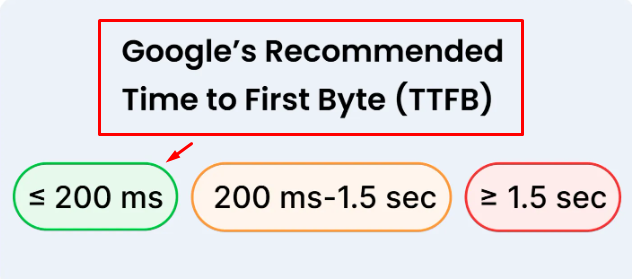
TTFB — Time to First Byte measures how long the browser waits before receiving the first byte of the HTML response.
If the server takes too long to respond, everything after it starts late.
Common WordPress causes include:
- overloaded shared hosting
- poor server configuration
- uncached WordPress pages
- slow database queries
- excessive plugins
- expensive PHP processing
- weak CPU or memory limits
- inefficient theme code
- poor object caching
- slow origin infrastructure
WordPress itself recommends reviewing unnecessary plugins, optimizing content & considering better hosting resources when the server is a bottleneck.
What you can do
Check:
- page caching
- server-side caching
- PHP version
- object caching
- database performance
- hosting resource limits
- CDN configuration
- HTTP/2 or HTTP/3 support
If your TTFB is the dominant part of the LCP timeline, compressing another image probably won’t solve the root problem.
2. Reduce LCP Resource Load Delay
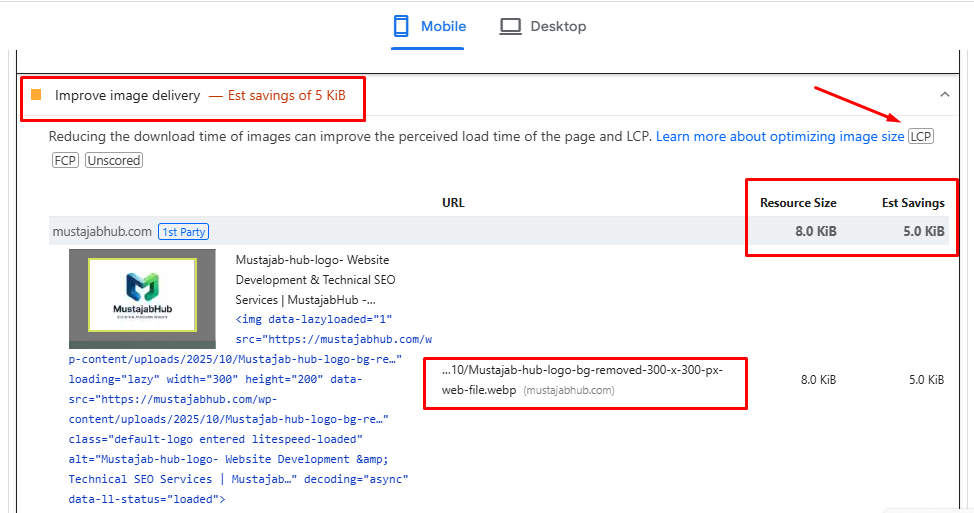
Resource load delay is the time between the initial response and the browser actually beginning to download the LCP resource.
This is an often-overlooked problem.
For example, imagine your hero image is the LCP element.
But the browser has to:
- download CSS
- execute JavaScript
- discover a background image
- calculate the layout
- finally request the image
The image itself may download quickly.
The problem is that the browser started downloading it too late.
Google’s LCP guidance specifically identifies resource load delay as a separate component of LCP.
Typical causes
- CSS background images
- JavaScript-generated content
- excessive CSS dependencies
- lazy loading the wrong image
- page-builder wrappers
- delayed resource discovery
- unnecessary preload chains
3. Reduce Resource Load Duration
Once the browser requests your LCP resource, it still needs to download it.
This is where image optimization becomes extremely important.
If your hero image is:
3.2 MB
and the visitor only needs:
180 KB
you’re making the browser download far more data than necessary.
Optimize the LCP image
Use:
- correct dimensions
- responsive images
- WebP
- AVIF where appropriate
- sensible compression
srcsetsizes- CDN delivery
WordPress recommends optimizing image files and supports modern image formats such as WebP.
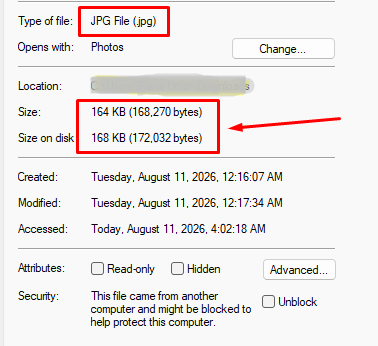
Don’t upload this:
4000 × 3000 pixel image for a 1200-pixel desktop container.
Resize it before serving it.
4. Reduce Element Render Delay
Sometimes the LCP resource has already downloaded.
But the browser still hasn’t painted it.
That can happen because of:
- render-blocking CSS
- JavaScript execution
- layout calculation
- font dependencies
- animations
- complex page-builder markup
- main-thread work
This is why simply compressing your hero image doesn’t always solve LCP.
If the image is already downloaded but the browser waits another second before displaying it, you have a render-delay problem, not simply an image-size problem.
Should You Lazy-Load the LCP Image?
Usually, no.
Lazy loading is useful for content below the fold because those images don’t need to download immediately.
But the main above-the-fold LCP image generally needs to be available quickly.
WordPress has progressively improved its image-loading behavior. WordPress 6.3 introduced fetchpriority="high" handling for images it identifies as likely LCP images and improved the logic that determines which images should not be lazy-loaded.
Simple rule
Above the fold: prioritize important content.
Below the fold: lazy-load when appropriate.
Don’t apply loading="lazy" to every image blindly.
What Is fetchpriority="high"?
fetchpriority gives the browser a hint about which resource deserves priority.
For the LCP image, an appropriate:
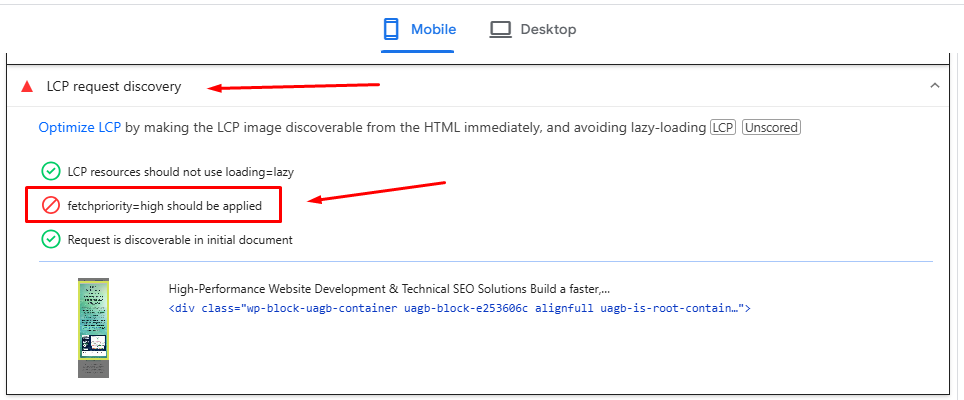
fetchpriority="high"can help the browser request it earlier.
WordPress introduced automatic support for likely LCP images in WordPress 6.3. WordPress Core documentation notes that the LCP image should not be simultaneously marked as lazy-loaded and high priority.
Important
Don’t manually put fetchpriority="high" on:
- your logo
- every image
- every icon
- every banner
- every product image
The goal is to prioritize the important resource, not everything.
WebP vs AVIF for WordPress LCP
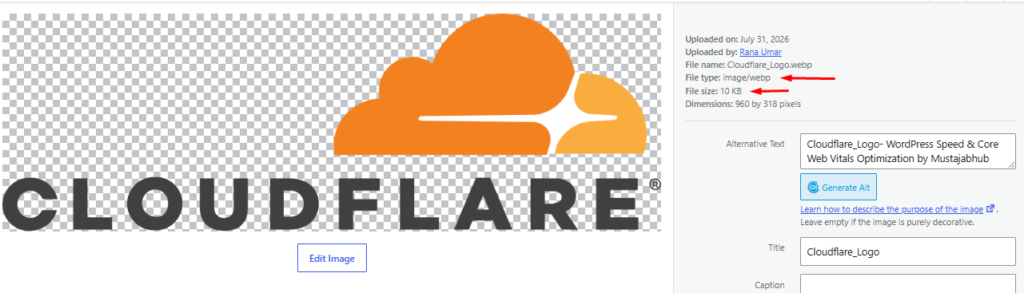
Modern image formats can reduce the amount of data the browser needs to download.
WebP
Good general-purpose option for:
- hero images
- blog images
- featured images
- product images
AVIF
Can provide even smaller files in suitable cases, but browser support, encoding workflow and image characteristics should be considered.
Don’t choose a format simply because it is newer.
Choose the format that gives you:
small file size + acceptable visual quality + reliable delivery.
Don’t Forget Background Images
This is a major WordPress problem.
A hero section might visually contain:
one large background image
but the HTML may not contain a normal <img> element.
Instead, the image can be referenced through CSS.
That can create a resource-discovery delay.
If PageSpeed Insights identifies your hero/background as the LCP element, investigate how that image is being delivered, not just how large the file is.
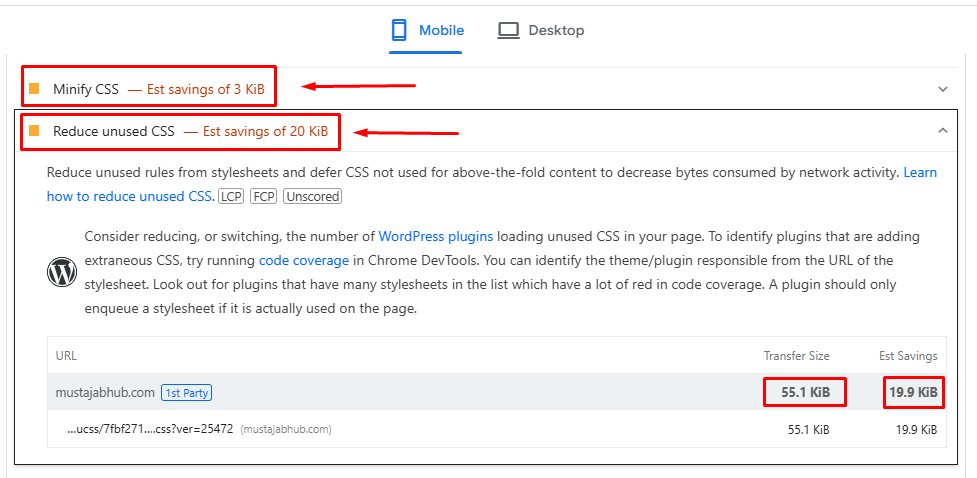
Fix Render-Blocking CSS
CSS can delay the browser from painting the page.
Common problems include:
- large theme stylesheets
- page-builder CSS
- unused CSS
- plugin styles loaded globally
- unnecessary icon libraries
- external font stylesheets
The goal is not to delete CSS blindly.
The goal is to make the CSS required for the initial viewport available quickly while reducing unnecessary work.
Fix JavaScript That Delays LCP
JavaScript can also delay rendering.
Look for:
- sliders
- animation libraries
- analytics scripts
- chat widgets
- social widgets
- popup scripts
- tracking scripts
- unused plugin JavaScript
- page-builder scripts
Don’t assume that every JavaScript optimization is automatically beneficial.
Test after each significant change.
A badly configured “delay JavaScript” setting can break:
- menus
- forms
- WooCommerce
- Elementor widgets
- sliders
- checkout
- analytics
Elementor and LCP
If you’re using Elementor, don’t automatically assume Elementor is the problem.
The real question is:
What does the LCP element require before it can render?
Elementor currently provides performance features including optimized image loading, element caching, optimized control loading and other performance options. Its documentation also describes prioritizing LCP images & lazy-loading images below the fold.
For an Elementor site, investigate:
- hero image size
- background images
- nested containers
- animation effects
- custom fonts
- third-party widgets
- unused widgets
- global CSS
- JavaScript
- Elementor performance settings
You can have a fast Elementor website.
You can also build a slow one.
The implementation matters.
Gutenberg and LCP
Gutenberg can produce a relatively lean page structure, but WordPress’s block editor does not automatically make every website fast.
A Gutenberg website can still have poor LCP because of:
- oversized images
- slow hosting
- heavy themes
- third-party scripts
- plugins
- fonts
- advertisements
- poorly optimized CSS
This is why the correct approach is to measure the actual page, not assume the builder is guilty.
WooCommerce LCP Problems
For WooCommerce stores, LCP becomes particularly important on:
- homepage
- category pages
- product pages
- promotional landing pages
Watch for:
- huge product images
- product sliders
- variation scripts
- recommendation widgets
- reviews
- tracking scripts
- payment integrations
- chat widgets
- excessive plugins
Never optimize a WooCommerce store directly on production without a backup and a sensible testing process.
A performance change that improves PageSpeed but breaks checkout is not an optimization.
How to Fix LCP Step by Step
Step 1 — Test the exact URL
Open Google PageSpeed Insights.
Test:
- homepage
- main service page
- important blog post
- WooCommerce product page
- landing page
Don’t test only the homepage.
Different templates can have completely different LCP elements.
Step 2 — Record the current results
Record:
- LCP
- FCP
- INP
- CLS
- TTFB where available
- Performance score
- LCP element
- LCP diagnostic opportunities
Take a screenshot before making changes.
This creates your baseline.
Step 3 — Identify the LCP element
Look for:
Largest Contentful Paint element
Write down exactly what Google identifies.
For example:
Hero image
or:
H1 heading
or:
Featured image
This prevents random optimization.
Step 4 — Identify the slow LCP phase
Ask:
Is TTFB high?
Investigate:
- hosting
- caching
- PHP
- database
- CDN
- server resources
Is resource load delay high?
Investigate:
- CSS
- background images
- lazy loading
- resource discovery
- JavaScript
- page-builder output
Is resource load duration high?
Investigate:
- image size
- WebP/AVIF
- dimensions
- CDN
- network delivery
Is render delay high?
Investigate:
- JavaScript
- CSS
- fonts
- animations
- main-thread work
This is much more useful than blindly installing another optimization plugin.
Step 5 — Optimize the LCP Image
If the LCP element is an image:
- resize it
- compress it
- convert it to WebP or AVIF
- use responsive image sizes
- make sure it isn’t unnecessarily lazy-loaded
- check whether WordPress has assigned appropriate loading priority
- serve it efficiently through your hosting/CDN
Step 6 — Improve WordPress Caching
Depending on your hosting environment, this could involve:
- full-page caching
- browser caching
- object caching
- CDN caching
- server-level caching
Your choice depends on the server stack.
For example, a LiteSpeed/OpenLiteSpeed environment may use LiteSpeed Cache, while other WordPress installations may use a different caching solution.
Don’t install several competing caching systems and enable every option simultaneously.
Step 7 — Review Your Hosting
If TTFB remains high after sensible caching and WordPress optimization, investigate the hosting environment.
Check:
- CPU usage
- RAM
- PHP workers
- database performance
- disk performance
- server location
- network latency
- caching availability
- HTTP/2 or HTTP/3
- CDN configuration
WordPress’s own performance documentation notes that upgrading hardware/resources or moving from constrained shared hosting can make a significant difference when the server is the bottleneck.
Step 8 — Use a CDN Where It Makes Sense
A CDN can place static resources closer to visitors and reduce the distance between the user and your assets.
Cloudflare is one commonly used option.
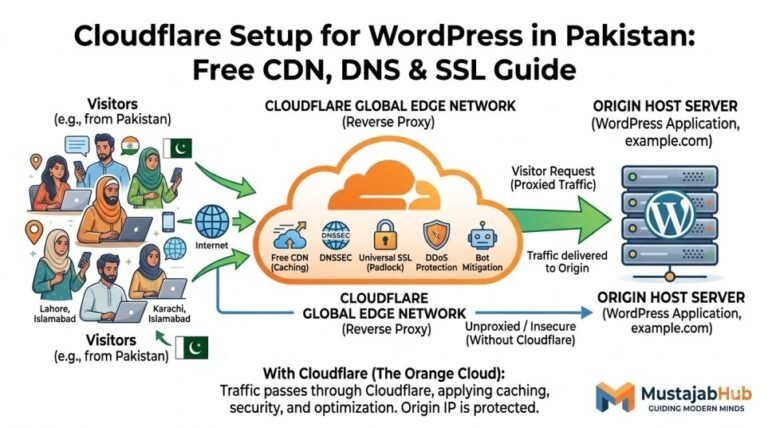
But don’t assume:
CDN = automatically fast.
If your origin server has poor TTFB, an improperly configured CDN won’t magically fix every problem.
Measure before and after.
Step 9 — Retest on Mobile
For a Pakistan-focused website, don’t stop after a desktop test.
Test mobile.
Check:
- LCP
- INP
- CLS
- FCP
- visual stability
- hero image appearance
- menu
- forms
- buttons
- checkout if applicable
The website should remain usable on a real mobile device, not merely produce a good desktop screenshot.
Step 10 — Validate Real User Data
After making changes, monitor:
Google Search Console → Core Web Vitals
Remember that field data doesn’t instantly change because you optimized the page yesterday.
Search Console’s Core Web Vitals reporting uses real-world data and rolling periods, so allow time for the data to reflect the changed experience.
MustajabHub Field Notes: What We Look For in Pakistani WordPress Audits
When we audit a WordPress website, we don’t start by asking:
“Which speed plugin should we install?”
We start by asking:
“What is actually delaying the visitor’s first useful view?”
The recurring problems we look for include:
- oversized hero images
- images loaded at much larger dimensions than displayed
- incorrectly lazy-loaded above-the-fold images
- slow server response
- excessive WordPress plugins
- heavy page-builder sections
- CSS that blocks the first render
- JavaScript that executes too early
- external fonts
- sliders above the fold
- unnecessary animations
- third-party tracking scripts
- poorly configured caching
- missing CDN strategy
- WooCommerce scripts loaded where they aren’t needed
The exact problem varies from site to site.
That’s why a PageSpeed score alone isn’t enough to diagnose LCP.
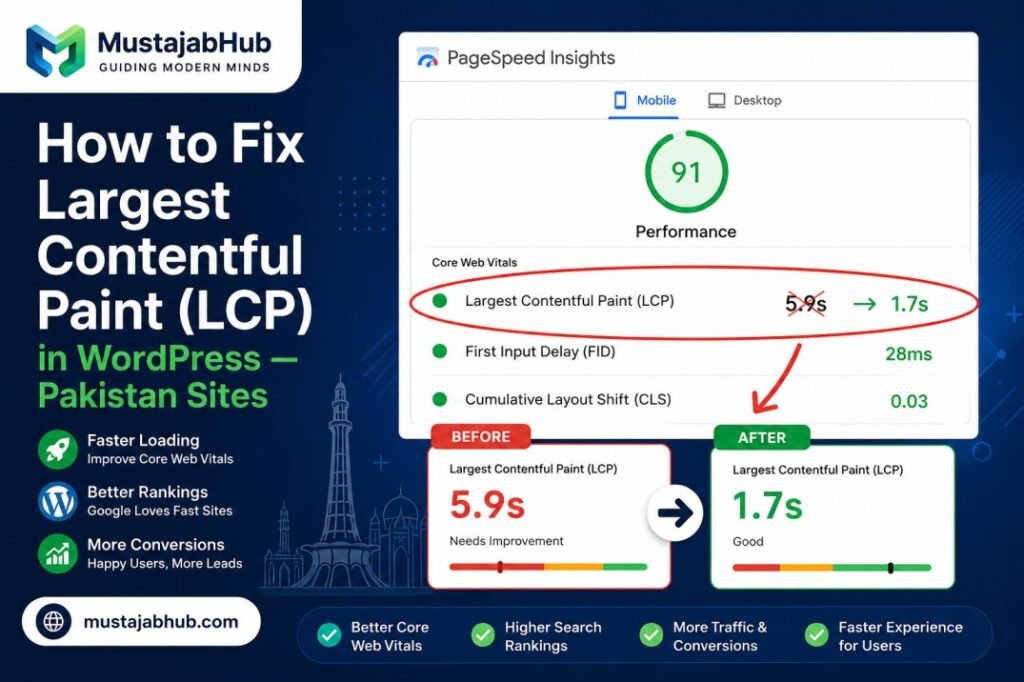
Real Before-and-After Example
Here is the type of performance record we recommend keeping during a real optimization project:
| Metric | Before | After |
|---|---|---|
| LCP | 5.9s | 1.7s |
| CLS | 0.28 | 0.01 |
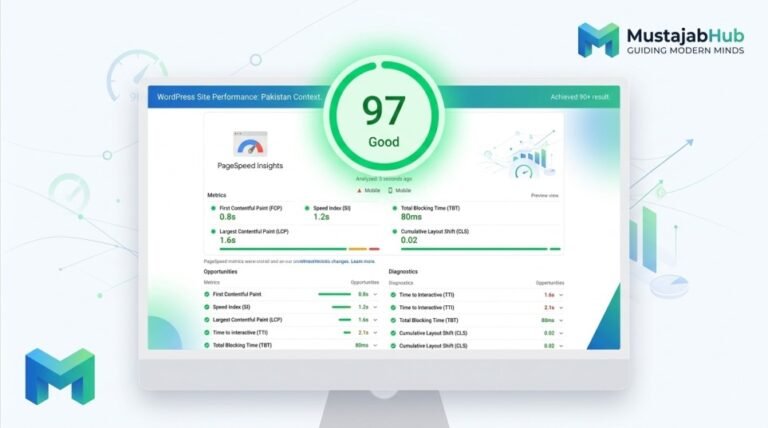
| PageSpeed Performance | 42 | 97 |
| Hero image | 2.5 MB | <200 KB |
| LCP image | Lazy-loaded | Prioritized |
| Caching | Limited | Configured |
Important: only publish these numbers as a case study if they come from an actual MustajabHub project and you can substantiate them with the original test results.
That’s important for trust.
Don’t manufacture performance data simply because it makes the article more persuasive.
Google’s people-first guidance specifically encourages original information, evidence and first-hand experience.
Mini Case Study: A WordPress Business Website With 5+ Second LCP
A local service-business website looked perfectly normal when viewed on a desktop computer.
The problem appeared when we tested the mobile experience.
PageSpeed Insights identified a large hero image as the LCP element.
The image was:
- oversized
- several megabytes in size
- displayed much smaller than its source dimensions
- unnecessarily delayed by the loading strategy
We resized the image, converted it to a modern format, corrected its loading priority and reviewed caching.
The result was a substantially faster LCP without redesigning the page.
What matters here?
The improvement didn’t come from one magical plugin.
It came from identifying the actual bottleneck and fixing the relevant part of the LCP timeline.
Don’t Do These LCP Optimization Mistakes
1. Don’t chase a 100 PageSpeed score
A PageSpeed score is a diagnostic indicator, not your business goal.
Your real goal is:
Fast, stable and usable pages for real visitors.
Google itself warns that perfect scores aren’t necessary for ranking success.
2. Don’t lazy-load the LCP image
Above-the-fold content normally needs to become available quickly.
3. Don’t preload everything
Preloading too many resources can create competition for bandwidth.
4. Don’t compress images without checking the LCP element
You might optimize ten images that aren’t responsible for the problem.
5. Don’t blame WordPress automatically
The problem could be:
- hosting
- theme
- plugin
- image
- JavaScript
- CSS
- CDN
- fonts
- page builder
- third-party scripts
6. Don’t install five caching plugins
Use one coherent performance strategy.
7. Don’t optimize only desktop
Test mobile.
8. Don’t change production WooCommerce settings blindly
Use staging and backups.
9. Don’t remove functionality simply to improve a score
A fast website that can’t generate leads or process orders isn’t a successful website.
LCP Troubleshooting Decision Tree
Is LCP above 2.5 seconds?
        ↓
Find the LCP element
        ↓
Is it an image?
   ↓ YES                         ↓ NO
Check image loading              Check text/rendering
        ↓                        ↓
Is it lazy-loaded?               Is TTFB high?
   ↓ YES → correct it              ↓ YES
        ↓                         Fix server/caching
Check image dimensions            ↓ NO
        ↓                         Check CSS/JS/fonts
WebP/AVIF + compression
        ↓
Check resource load delay
        ↓
Check TTFB
        ↓
Retest mobile
        ↓
Monitor Search Console field data
How to Fix LCP in Elementor
If your WordPress website uses Elementor:
- Identify the LCP element.
- Check whether the hero is an
<img>or CSS background. - Optimize the hero image.
- Review Elementor performance settings.
- Reduce unnecessary animations.
- Reduce excessive nested layout structures.
- Check custom fonts.
- Review third-party widgets.
- Test JavaScript execution.
- Retest mobile.
Elementor itself now documents performance functionality including optimized image loading, element caching and optimized control loading.
How to Fix LCP in Gutenberg
For Gutenberg:
- Identify the LCP element.
- Optimize the featured or hero image.
- Use responsive image sizes.
- Avoid unnecessarily large background images.
- Remove unnecessary blocks/plugins.
- Review theme CSS.
- Check fonts.
- Check caching.
- Check server response time.
- Retest.
Gutenberg can be lightweight, but the final performance depends on the complete WordPress stack.
Best WordPress Plugins for LCP?
There is no universal “best LCP plugin.”
Your solution depends on the bottleneck.
Depending on the hosting stack, commonly encountered WordPress performance tools include:
- LiteSpeed Cache
- WP Rocket
- Perfmatters
- Jetpack Boost
- image optimization tools
- CDN solutions such as Cloudflare
The important point is:
A plugin is a tool, not a diagnosis.
Jetpack, for example, documents WordPress-specific LCP optimization features, while Elementor and WordPress Core also provide their own performance mechanisms.
Don’t install a plugin simply because somebody says:
“This will give you 100/100.”
How Long Does It Take to Fix LCP?
It depends on the bottleneck.
| Task | Typical time |
|---|---|
| Find LCP element | 5–10 minutes |
| Optimize hero image | 15–30 minutes |
| Check lazy loading | 5–15 minutes |
| Review caching | 15–45 minutes |
| Review CSS/JS | 20–60 minutes |
| Hosting/TTFB investigation | 30–90+ minutes |
| Full WordPress performance audit | Depends on site |
These are practical estimates, not guarantees.
A simple business website can sometimes be improved quickly.
A WooCommerce store with multiple integrations can require substantially more testing.
Questions Pakistani Business Owners Actually Ask
Why is my LCP still slow after compressing all my images?
The image likely isn’t your actual bottleneck. Check whether a slow server response time or render-blocking JavaScript is delaying the page before the image ever starts loading — the visible symptom and the root cause are rarely the same thing.
Does fixing LCP actually help my Google ranking?
Yes—Google recommends keeping LCP under 2.5 seconds for the majority of real visits, and it’s one of the three Core Web Vitals used as a direct ranking signal alongside content quality.
My hosting is cheap — can I still fix LCP without upgrading?
Partially. Image and code optimization help regardless of hosting, but if your server response time is the main bottleneck, no amount of image compression will fully fix it.
Is a WordPress caching plugin enough to fix LCP?
No, it helps significantly with TTFB and repeat visits, but it won’t fix an unoptimized hero image or a lazy-loaded above-the-fold element on its own — you need both.
What is a good LCP score?
An LCP of 2.5 seconds or less is considered good at the recommended 75th-percentile threshold. Between 2.5 and 4 seconds needs improvement, while above 4 seconds is poor.
Why is my WordPress LCP above 4 seconds?
Common causes include:
slow TTFB
large LCP images
resource load delay
render-blocking CSS
JavaScript execution
fonts
page builders
background images
plugins
third-party resources
The correct cause depends on the LCP breakdown.
Does WebP improve LCP?
It can.
If your LCP element is an image, reducing its transfer size can reduce resource load duration. But WebP alone won’t fix a slow server or a large render delay.
Should I lazy-load my hero image?
Usually not.
The LCP element is above the fold in many cases and should be available early. WordPress has built-in loading optimization logic intended to avoid lazy-loading likely above-the-fold images.
Does hosting affect LCP?
Yes.
Server response time contributes directly to LCP. If TTFB is high, improving the server, caching or hosting environment can be important.
Does Cloudflare fix LCP?
Cloudflare can help with caching, network delivery and static resources, but it doesn’t automatically fix every LCP problem.
If your origin server is slow or your hero image is badly implemented, you still need to fix the underlying issue.
Does Elementor make LCP slow?
Not automatically.
Elementor can add frontend work depending on how a page is built, but a well-optimized Elementor page can perform well. Elementor also provides performance features designed to improve loading behavior.
Does Gutenberg guarantee a fast website?
No.
Gutenberg can provide a lean editing and rendering environment, but hosting, theme, plugins, images, CSS, JavaScript and third-party resources still affect performance.
Why is PageSpeed Insights different from Google Search Console?
Because they serve different purposes.
PageSpeed Insights provides page-level testing and can show both lab and field information where available. Search Console’s Core Web Vitals report groups URLs and reports real-user performance data when sufficient data exists.
Can I get LCP below 2.5 seconds?
Often, yes—but nobody should promise a particular result without testing the website.
The correct process is:
measure → identify → fix → retest → monitor.
MustajabHub’s Practical LCP Rule
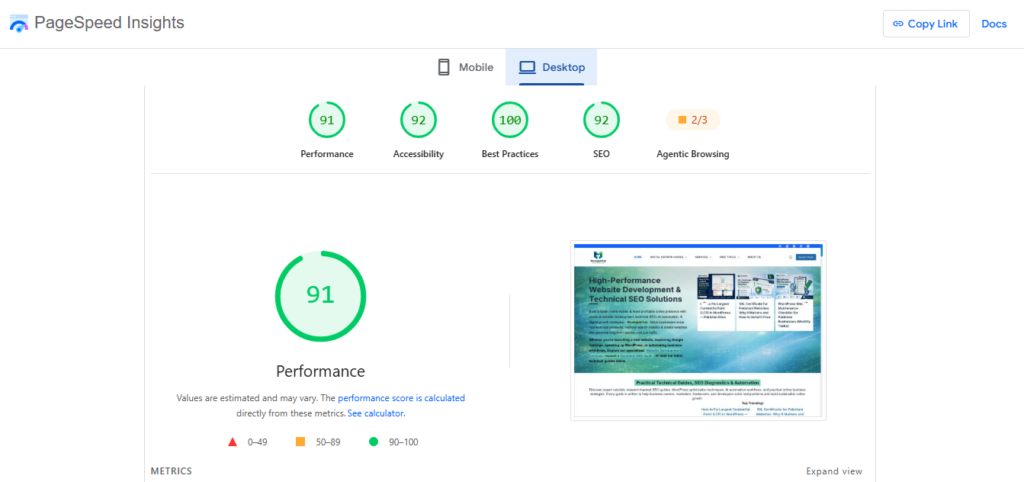
When a Pakistani business owner tells us:
“My PageSpeed score is bad. Which plugin should I install?”
our first question is:
“What is your LCP element?”
Then we investigate the four parts of the LCP timeline.
That approach is more reliable than randomly changing plugins.
For a WordPress business website, the most useful performance workflow is:
PageSpeed Insights → LCP element → LCP breakdown → WordPress implementation → retest → Search Console monitoring
Who This Guide Is For
This guide is for:
- Pakistani business owners running WordPress websites
- WordPress developers
- Elementor users
- Gutenberg users
- WooCommerce store owners
- freelancers managing client websites
- SEO professionals
- technical SEO teams
- businesses experiencing poor mobile PageSpeed
- website owners seeing poor Core Web Vitals
- anyone trying to reduce WordPress LCP
When You Should Get a Professional WordPress Speed Audit
If you have already:
- compressed images
- installed caching
- enabled a CDN
- optimized plugins
but your LCP is still above 2.5–4 seconds, don’t keep adding random optimizations.
At that point, you need to identify the bottleneck.
A technical WordPress performance audit should examine:
- LCP element
- LCP subparts
- TTFB
- caching
- server resources
- image delivery
- CSS
- JavaScript
- fonts
- plugins
- theme
- Elementor/Gutenberg output
- WooCommerce resources
- CDN
- third-party scripts
- mobile performance
- Core Web Vitals field data
That tells you whether the problem is actually WordPress—or something underneath it.
MustajabHub’s WordPress Speed Optimization Approach
At MustajabHub, we don’t treat PageSpeed Insights as a number to manipulate.
We use it as a diagnostic tool.
Our approach is:
1. Baseline testing
We record the existing performance.
2. LCP identification
We find the element responsible for LCP.
3. Technical diagnosis
We examine TTFB, resource loading and rendering.
4. WordPress optimization
We review themes, plugins, images, caching and frontend resources.
5. Mobile testing
We test the experience that matters most to many business visitors.
6. Retesting
We compare before and after results.
7. Search Console monitoring
We monitor field data after changes have had time to be reflected.
The goal isn’t a screenshot with a green 100.
The goal is a website that loads useful content quickly and remains usable for real customers.
Final Takeaway
If your WordPress website has a poor LCP, don’t start by installing another speed plugin.
Start by finding the Largest Contentful Paint element.
Then ask four questions:
- Is my server responding quickly?
- Is the browser discovering the LCP resource quickly?
- Is the LCP resource small and delivered efficiently?
- Can the browser render it without unnecessary CSS or JavaScript delays?
Fix the actual bottleneck, retest on mobile, and then monitor your real-user Core Web Vitals data.
For Pakistani businesses, this approach is more useful than chasing a perfect PageSpeed score because it connects technical performance with the experience of the people actually visiting your website.
Not Sure Where to Start?
If you’re unsure whether your LCP problem comes from images, hosting, or render-blocking code, a proper technical audit finds the exact cause instead of guessing. Our WordPress speed optimization service diagnoses and fixes LCP, TTFB, and Core Web Vitals issues directly. Request a free speed audit here or contact us directly to get a real answer.
For deeper technical reference, Google’s own Web Vitals documentation breaks down LCP optimization in full technical detail, and the PageSpeed Insights tool itself is where you should test your site first.
About the Author
Rana Umar is a website development and technical SEO writer at MustajabHub, where he covers WordPress performance, Core Web Vitals, technical SEO and website optimization for Pakistani businesses.
His performance recommendations are based on WordPress testing, PageSpeed diagnostics and practical website audits. Where a result comes from a specific client project, the article should identify the test conditions and supporting evidence rather than presenting generalized numbers as universal benchmarks.
Read More About : Technical-seo-audit-checklist | Why-is-my-wordpress-website-slow | how to get Google AdSense approved in Pakistan | ssl-certificate-pakistan-website