

Why Is My WordPress Website Slow? 13 Real Causes and How to Fix Each One
By Rana Umar · July 15, 2026 · Website Building
If your WordPress website is slow, the problem is almost never WordPress itself. In most cases, poor hosting, unoptimized images, too many plugins, missing caching, or a heavy theme are responsible. The good news is that you can fix most speed problems without touching a single line of code — and without rebuilding your entire website. This guide explains the 13 most common reasons your WordPress website is slow and shows you exactly how to fix each one.
Your WordPress website is slow — and it is costing you real money, real visitors, and real rankings right now. Every second your site takes to load, people leave. Google notices. Your competitors move higher. The frustrating part is that most website owners spend months wondering what is wrong while the answer is actually very simple to find if you know where to look.
I have worked on WordPress speed optimization for dozens of websites — from small business sites in Pakistan to WooCommerce stores serving customers across Asia and Europe. The same causes show up again and again. This guide covers all of them, in plain English, with clear fixes for every single one. No developer degree required.
Before we dive in, let’s look at why speed matters so much right now.
Why a Slow WordPress Website Hurts More Than You Think
These numbers are not exaggerated. This is what the data actually shows about slow loading websites:
Think about that last number for a second. In Pakistan, nearly 8 out of 10 visitors come to your website on a phone — often on a mobile network. If your WordPress site loads in 5 seconds on mobile, more than half of those visitors are already gone before they even see your homepage.
And from a Google ranking perspective: since 2021, Core Web Vitals including Largest Contentful Paint (LCP), Interaction to Next Paint (INP), and Cumulative Layout Shift (CLS) are confirmed ranking factors. Sites that pass all three gain measurable ranking advantages over slower competitors.
Why Is My WordPress Website Slow? The 13 Real Causes
Most slow WordPress websites are not suffering from one big problem. They have a stack of smaller problems that build up over time and combine into a painfully slow experience. Here are the 13 most common causes — and what to actually do about each one.
Cheap Shared Hosting
This is the number one cause of slow WordPress websites, especially in Pakistan and across South Asia. Cheap shared hosting puts your website on a server with hundreds or thousands of other websites. Everyone shares the same CPU, RAM, and bandwidth. When another site on your server gets traffic, your site slows down — through no fault of your own.
Poor hosting alone accounts for around 37% of slow loading issues across the web. On cheap shared hosting, your server’s Time to First Byte (TTFB) — the time it takes for the server to even start sending data — can be 800ms or higher. Google recommends under 200ms.
The fix: Move to a managed WordPress hosting provider or a VPS (Virtual Private Server) with a LiteSpeed server. For Pakistani audiences, look for hosts with servers in Karachi, Singapore, or Dubai for the fastest regional response times. For international audiences, use Cloudflare CDN on top of your hosting to reduce latency.
Switch to quality hosting or add Cloudflare CDNImages That Are Way Too Large
This is the most common fixable problem on WordPress websites. Most people upload photos straight from their camera or phone. Those files are 3MB, 5MB, even 10MB. Even if the image looks small on screen, every visitor’s browser still downloads the full file. On a mobile connection, this is brutal.
Images typically make up the largest portion of a page’s total file weight. And unoptimized images directly destroy your Largest Contentful Paint (LCP) score — the most important Core Web Vitals metric. Switching to WebP format alone reduces image file sizes by 25–35% compared to JPEG/PNG.
The fix: Compress all images before uploading. Convert them to WebP format. Apply lazy loading to all images below the fold. Use a plugin like ShortPixel, Imagify, or Converter for Media to automate this. Your LCP hero image should never use lazy loading — it must load immediately.
Use WebP + compress images + enable lazy load correctlyNo Caching Enabled
By default, every time someone visits a page on your WordPress site, the server builds that page from scratch. It runs PHP scripts, queries the MySQL database, processes your theme and plugins, and generates the HTML — all in real time, for every single visitor. This process is slow and server-intensive.
Caching solves this by saving a static version of each page and serving it instantly to visitors. This single change can improve site loading speed by 20–50%. Without caching, your WordPress site is working way harder than it needs to — every single time.
The fix: Install a caching plugin immediately. LiteSpeed Cache is the fastest option if your host runs LiteSpeed servers. WP Rocket is the best all-in-one premium option. W3 Total Cache is the most flexible free option. Make sure your hosting caching and your plugin caching are not conflicting with each other.
Install LiteSpeed Cache or WP Rocket today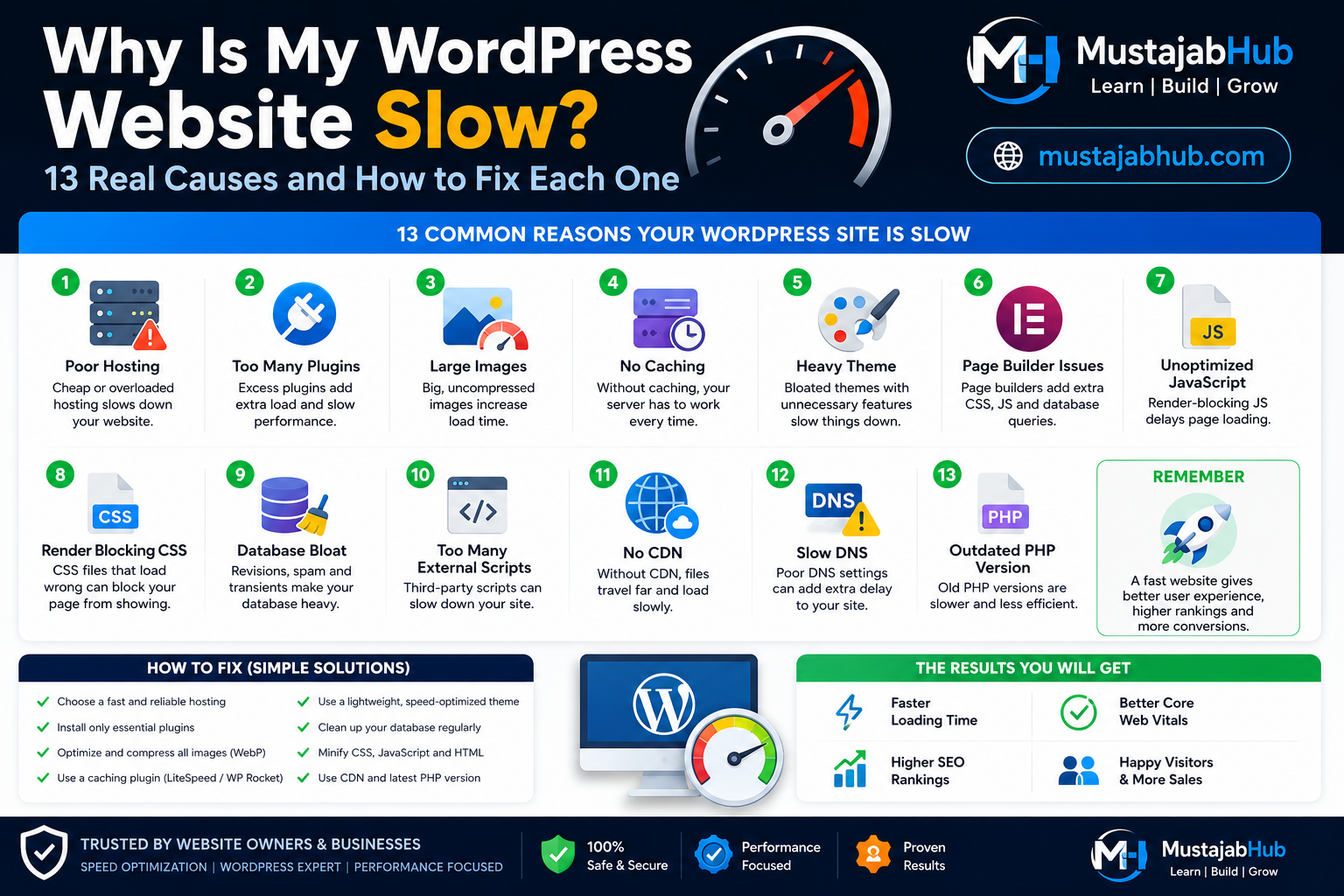
Too Many Plugins (Or the Wrong Ones)
WordPress plugins are useful, but every plugin you install adds code that your server has to process. WordPress sites with 20 or more plugins are 40% slower than clean setups. And this doesn’t just mean poorly coded plugins — even well-coded plugins can be a problem when too many of them load scripts on every single page.
The real issue is plugins that load their JavaScript and CSS everywhere, even on pages where they are not used. A contact form plugin that loads on every page — even blog posts where there is no form — wastes real loading time.
The fix: Audit your plugins with Query Monitor. Deactivate and delete anything you are not actively using. For the plugins you keep, use a tool like Perfmatters to disable specific scripts on specific pages. Go from 25 plugins to 12 and your site will feel like a different website.
Audit plugins with Query Monitor + use PerfmattersHeavy Theme or Page Builder
That beautiful theme you picked from ThemeForest? It might be loading 15 JavaScript files, 8 CSS files, and 3 different slider libraries — even on a simple blog post page. Heavy themes are one of the most common causes of slow WordPress websites, especially those built with Elementor, Divi, or WPBakery.
Page builders like Elementor and Divi add an average of 0.8–2.2 seconds to your load time on their own. This is not because they are bad tools — it is because most people use them without optimization. Sites built with heavy themes load 2–4 seconds slower on average than lightweight alternatives.
The fix: If you use Elementor, make sure to disable unused Elementor widgets and use the experimental CSS optimization feature. If possible, switch to a lightweight theme like Blocksy, GeneratePress, or Kadence. These themes load in under 30KB — most bloated themes load 300–500KB of assets just for the theme alone.
Switch to Blocksy/GeneratePress or optimize ElementorRender-Blocking JavaScript and CSS
When a browser loads your WordPress page, it reads the HTML from top to bottom. If it hits a JavaScript or CSS file in the header, it stops everything and waits for that file to fully download and process before continuing. This is called a render-blocking resource — and it is why your page feels like it freezes during loading.
Render-blocking resources are one of the most common warnings in Google PageSpeed Insights. Every WordPress theme and plugin that loads scripts in the wrong order creates this problem. Google PageSpeed Insights
The fix: Defer non-critical JavaScript. Inline critical CSS (the CSS needed to show above-the-fold content). Remove unused CSS and JavaScript. A good caching plugin like WP Rocket or LiteSpeed Cache handles most of this automatically. Chrome DevTools and GTmetrix waterfall analysis show you exactly which files are blocking your render.
Defer JS + inline critical CSS + remove unused codeDatabase Bloat and Slow Queries
WordPress stores everything in a MySQL database — every post, page, comment, plugin setting, and transient. Over time this database fills up with junk: hundreds of post revisions, spam comments, orphaned metadata from deleted plugins, expired transients, and old log entries. This bloat makes every database query slower and slows down your whole WordPress admin panel too.
If you have ever noticed your WordPress dashboard becoming slow to load — this is usually why. A bloated database directly increases your server response time (TTFB).
The fix: Use WP-Optimize or WP-CLI to clean your database. Delete post revisions (limit future revisions to 3–5 maximum by adding a simple line to wp-config.php). Clear expired transients. Remove orphaned metadata. Schedule automatic database cleanup weekly. Query Monitor helps you identify slow queries caused by specific plugins.
Clean database with WP-Optimize + limit post revisionsNo CDN (Content Delivery Network)
If your website is hosted on a server in Karachi and a visitor from Dubai, Singapore, or the USA loads your site, all your images, CSS, and JavaScript files have to travel from Karachi to their browser. That physical distance adds latency — sometimes 200–400ms of delay just from geography alone.
A CDN stores copies of your static files across dozens of data centers around the world. When someone loads your site, they get those files from the nearest server — cutting delivery time dramatically. Using a CDN can reduce global latency by 30–60%.
The fix: Cloudflare is free and has edge nodes in Karachi, Mumbai, Singapore, Dubai, and London — making it the best option for Pakistani websites targeting both local and international audiences. Enable Cloudflare, configure WordPress-specific caching rules, and activate image optimization. BunnyCDN is another affordable option for static file delivery.
Set up Cloudflare free CDN (has Karachi edge node)Outdated PHP Version
WordPress runs on PHP. The version of PHP your hosting account uses makes a massive difference in how fast WordPress executes code. PHP 8.1 and PHP 8.2 are dramatically faster than PHP 7.4 — and older versions are end-of-life, meaning no security fixes either.
Many hosting accounts in Pakistan and across South Asia still run PHP 7.4 by default because hosts don’t update it automatically. This is a free performance upgrade most WordPress site owners never think to check.
The fix: Log into your cPanel or hosting dashboard, find the PHP version selector, and switch to PHP 8.1 or 8.2. Always back up your site first and check plugin compatibility. This one change alone can noticeably improve your WordPress dashboard speed and page rendering time — for free, in two minutes.
Update PHP to 8.1 or 8.2 in your hosting cPanelThird-Party Scripts (Facebook Pixel, Google Analytics, Chat Widgets)
Every third-party script you add to your WordPress website — Facebook Pixel, Google Analytics, Google Tag Manager, chat widgets, YouTube embeds, Hotjar, LinkedIn Insight — adds a separate server request that your browser has to wait for. You have no control over how fast those external servers respond.
A single chat widget can add 300–500ms to your load time. A YouTube embed that loads immediately on page load (instead of using a facade) can add 1–2 full seconds. These scripts are often invisible in your WordPress dashboard but clearly visible in your GTmetrix waterfall report.
The fix: Use Google Tag Manager to control when scripts fire. Use Perfmatters to delay non-critical scripts until user interaction. Replace embedded YouTube videos with a lightweight YouTube facade (a thumbnail image that only loads the actual video when clicked). Audit your active scripts in Chrome DevTools → Network tab.
Delay scripts with Perfmatters + use YouTube facadeGoogle Fonts and Custom Font Loading
Google Fonts are convenient, but loading them from Google’s servers adds an external DNS lookup and download request to every page load. On top of that, many WordPress themes load 4–6 different font weights and styles, most of which are never actually used on the page. This can block the First Contentful Paint (FCP) of your WordPress site.
The fix: Self-host your fonts instead of loading them from Google. Download the font files, upload them to your server, and use @font-face in your CSS. Add font-display: swap so text renders immediately with a fallback font while the custom font loads. Limit font variations to the ones you actually use — usually 2 weights maximum.
Self-host fonts + use font-display: swapNo Object Caching (Redis or Memcached)
Standard page caching serves pre-built HTML to visitors. Object caching goes one level deeper — it stores the results of individual database queries in memory (RAM) so they don’t need to run again. This is especially important for WooCommerce stores and membership sites where pages are personalized and can’t use standard page caching.
If you are running a WooCommerce store and your product pages still feel slow even with a caching plugin active, missing object caching is almost certainly part of the problem.
The fix: Ask your hosting provider if they offer Redis or Memcached. Most managed WordPress hosts include Redis. Enable it through your hosting dashboard and configure your caching plugin to use it as the object cache backend. On LiteSpeed hosting, LiteSpeed Cache handles object caching natively.
Enable Redis object caching through your hostPoor Mobile Optimization
Many WordPress website owners test speed on desktop and feel satisfied. Then they forget to check mobile. Google uses mobile-first indexing — this means Google crawls and ranks your site based on the mobile version. Your mobile Core Web Vitals score is the one that determines your position in Google search results, not your desktop score.
In Pakistan, mobile web traffic represents 78% of all browsing. Across South Asia, mobile users often have slower connections. If your desktop site loads in 2 seconds but your mobile site loads in 7 seconds, you are losing most of your traffic and getting hurt in Google rankings at the same time.
The fix: Always run your PageSpeed Insights test on the mobile tab, not just desktop. Test with Chrome DevTools using 3G throttling to simulate real mobile network conditions. Make sure your LCP image is properly sized for mobile viewports. Ensure your theme is genuinely responsive — not just visually resized on mobile.
Test mobile separately in PageSpeed Insights + GTmetrixWant to understand these speed metrics better? Google explains Largest Contentful Paint (LCP), Interaction to Next Paint (INP), and Cumulative Layout Shift (CLS) in its official Core Web Vitals documentation.
Quick Reference: WordPress Speed Problems at a Glance
| Problem | Impact on Speed | Difficulty to Fix | Priority |
|---|---|---|---|
| Cheap shared hosting | +1–3 seconds TTFB | Medium | Critical |
| Unoptimized images | +2–5 seconds load time | Easy | Critical |
| No caching plugin | +1–3 seconds per page | Easy | Critical |
| Too many plugins | +1–4 seconds load time | Easy | High |
| Heavy theme / page builder | +0.8–2.2 seconds | Medium | High |
| Render-blocking JS/CSS | Delays visible content 1–2s | Medium | High |
| Bloated database | +0.5–2 seconds | Easy | Medium |
| No CDN | +200–400ms for global visitors | Easy | Medium |
| Old PHP version (7.x) | +0.5–1 second server processing | Easy (2 min) | Medium |
| Third-party scripts | +0.3–2 seconds per script | Medium | Medium |
| Google Fonts from external server | +100–500ms | Easy | Low–Medium |
| No object caching (Redis) | Major impact on dynamic sites | Medium | WooCommerce sites |
| Poor mobile optimization | Google ranking impact | Easy to test | Critical |
How to Check What Is Making Your WordPress Website Slow
Before you start fixing things, you need to know what is actually causing your slow WordPress website. Guessing wastes time. These free tools give you a clear picture in minutes:
Google PageSpeed Insights
Shows your Core Web Vitals (LCP, INP, CLS), real user data from CrUX, and specific recommendations. Always check the mobile tab.
GTmetrix
Shows a full waterfall chart of every file your page loads. Perfect for spotting render-blocking scripts and slow third-party resources.
WebPageTest
The most detailed free tool. Shows TTFB, filmstrip view of how your page loads visually, and video comparison of before/after.
Chrome DevTools
Built into your browser. Use the Network tab to see every request and the Lighthouse tab to run a full performance audit locally.
Query Monitor
A free WordPress plugin that shows slow database queries, plugin script loading times, and PHP errors inside your dashboard.
Google Search Console
Shows your real Core Web Vitals data for all pages on your site based on actual user data from the Chrome UX Report (CrUX).
Start with Google PageSpeed Insights. Enter your URL, switch to the Mobile tab, and read every warning carefully. The “Opportunities” section shows the biggest wins. The “Diagnostics” section shows the technical details. Between PageSpeed Insights and GTmetrix, you can identify 90% of your WordPress speed problems in 10 minutes.
Before vs. After WordPress Speed Optimization
Here is what a typical WordPress website looks like before and after proper optimization:
❌ Before Optimization
- Load time: 6–9 seconds on mobile
- PageSpeed score: 25–45
- LCP: 5–8 seconds (failing)
- TTFB: 800ms–2 seconds
- Bounce rate: 70–85%
- Google ranking: Page 3+
- Image sizes: 2–8MB total
- 25+ plugins loading everywhere
- No caching, no CDN
- PHP 7.4, no database cleanup
✅ After Optimization
- Load time: 1.5–2.5 seconds on mobile
- PageSpeed score: 85–95
- LCP: Under 2.5 seconds (passing)
- TTFB: Under 200ms
- Bounce rate: 35–50%
- Google ranking: Improved
- Image sizes: Under 300KB total
- Plugins load conditionally
- Full caching + Cloudflare CDN
- PHP 8.2, clean database
Best WordPress Speed Optimization Plugins (That Actually Work)
You don’t need 5 plugins to optimize your WordPress website. You need the right 2–3. Here is what actually works:
| Plugin | What It Does | Best For | Cost |
|---|---|---|---|
| LiteSpeed Cache | Full-stack caching, image optimization, CDN, CSS/JS optimization | Hosts with LiteSpeed server | Free |
| WP Rocket | All-in-one caching, lazy load, deferred JS, CDN integration | Any hosting, easiest setup | Paid |
| Perfmatters | Disable unused scripts per-page, delay JS, remove bloat | Advanced script control | Paid (cheap) |
| ShortPixel | Image compression + WebP conversion, bulk optimize | Image-heavy sites | Free + Paid |
| Imagify | Smart image compression, WebP/AVIF, WooCommerce compatible | WooCommerce product images | Free + Paid |
| Cloudflare | CDN, caching, security, image optimization, global edge network | All websites | Free plan available |
| WP-Optimize | Database cleanup, image compression, caching in one | Database maintenance | Free |
| Query Monitor | Shows slow queries, plugin load times, PHP errors | Diagnosing problems | Free |
Do not install multiple caching plugins. This is the most common mistake. Pick one — LiteSpeed Cache if your host supports it, WP Rocket if not — and configure it properly. Running two caching plugins at once breaks both of them.
Common Mistakes That Make WordPress Websites Slower (That Nobody Talks About)
Competitors cover the obvious causes. Here are the ones most guides miss:
- Lazy-loading the LCP image. Your Largest Contentful Paint image — the main hero image or banner — should never have lazy loading. Adding lazy load to your LCP image tells the browser to delay it, which directly tanks your LCP score and destroys your Core Web Vitals.
- Installing 3 or more SEO plugins. Yoast SEO + Rank Math + All in One SEO running simultaneously is like running three GPS apps at the same time. Pick one and remove the others completely.
- Cloudflare default settings for WordPress. Cloudflare’s default caching rules bypass WordPress pages because it doesn’t know your site uses WordPress. You need to configure custom page rules or use the Cloudflare WordPress plugin to make caching actually work.
- Testing speed only on desktop. Google ranks you on mobile. If you only test desktop speed, you are optimizing the wrong thing.
- Using Elementor without disabling unused widgets. Elementor loads CSS for every possible widget even if you only use 10 of them. Enable Elementor’s “Load only used CSS” feature in its performance settings.
- Not deleting deactivated plugins. Deactivated plugins do not load on the front end, but they still sit in your file system and can slow down your WordPress admin panel. Delete them completely.
Is Your WordPress Website Still Slow After Reading This?
Sometimes the problem is deeper than what a guide can fix. We offer a free WordPress speed audit where we check your site against all 13 causes listed above — and give you a specific action plan. No generic advice. Your site, your problems, your fixes.
👉 Get Your Free WordPress Speed AuditFrequently Asked Questions — Why Is My WordPress Website Slow?
• WordPress Speed Optimization Service — Get a free audit and see exact results before/after
• Technical SEO Performance Fix — Fix crawl errors, indexing issues, and Core Web Vitals together
• WordPress Web Development — Build fast from the start with a lightweight, optimized WordPress site
• SEO & Content Writing — Speed + great content = the winning combination for Google rankings
• View All Services
Final Thoughts: Your WordPress Website Does Not Have to Be Slow
A slow WordPress website is not a WordPress problem. It is a configuration problem. And configuration problems can be fixed.
The 13 causes in this guide — cheap hosting, large images, missing caching, too many plugins, heavy themes, render-blocking code, database bloat, no CDN, old PHP, third-party scripts, bad font loading, missing object caching, and poor mobile optimization — are responsible for the vast majority of slow WordPress websites across Pakistan, Asia, and the rest of the world.
Start with the easy wins: install a caching plugin, compress your images to WebP, update your PHP version, and run a PageSpeed Insights test on mobile. These four changes alone can take a site from a 40 score to a 70 score without touching anything complicated.
If you want the full job done right — with GTmetrix waterfall analysis, Core Web Vitals optimization, database cleanup, CDN configuration, and before/after results you can actually see — that is exactly what we do at MustajabHub. Start with a free WordPress speed audit here and we’ll tell you exactly what is slowing your site down.