

Your WordPress website is slow. You know it already — you have felt that painful wait yourself when testing your own pages. Your visitors feel it too. Except they do not wait around to tell you. They just leave.
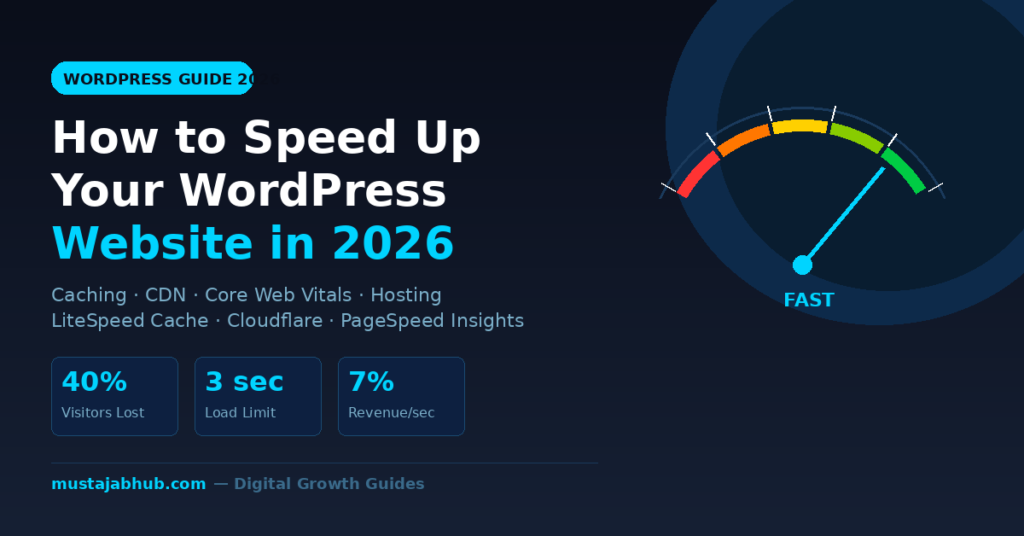
Forty percent of visitors abandon a website that takes more than 3 seconds to load. For Pakistani small businesses and bloggers running WordPress on cheap shared hosting, the average page load time sits between 5 and 9 seconds. That is not a slow site. That is an empty site — because nobody stays long enough to read anything.
This step-by-step guide covers every proven method to speed up your WordPress website in 2026. Whether you run a blog, a business site, or a WooCommerce store, every fix here is real, tested, and explained in plain language. Fixes are ordered by impact — the changes that make the biggest visible difference come first.
Why WordPress Site Speed Directly Affects Your Google Ranking
Before touching any settings, understand what is actually at stake when your site loads slowly.
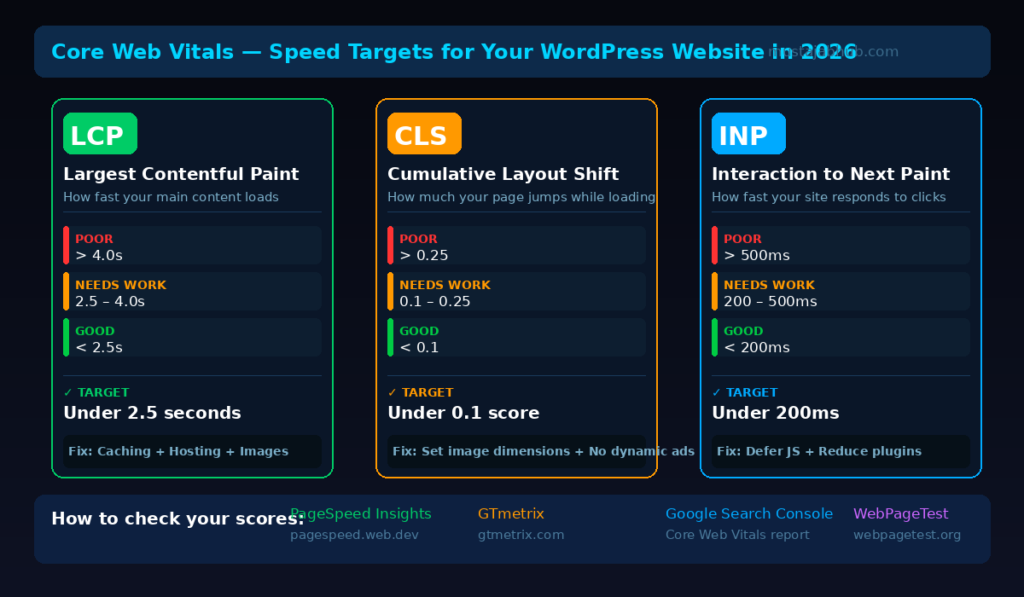
Since 2021, Google officially uses Core Web Vitals as ranking signals. These three metrics measure real user experience on your pages — not a lab simulation, but actual data from real visitors recorded in Google Search Console.
LCP — Largest Contentful Paint measures how fast the main content of your page loads visually. Google wants LCP under 2.5 seconds. Most slow WordPress sites have LCP between 6 and 12 seconds. That single metric alone puts a ceiling on your organic search ranking.
CLS — Cumulative Layout Shift measures how much your page jumps and shifts while loading. You have seen this on mobile — you tap a button and it moves just as your finger touches it. Google penalises CLS above 0.1. Pages with poor CLS scores suffer in rankings and users lose trust instantly.
INP — Interaction to Next Paint replaced FID in 2024. It measures how fast your site responds when a visitor taps or clicks anything. Google wants INP under 200 milliseconds. Sites with sluggish INP feel broken to users even if the page loaded visually fast.
Failing Core Web Vitals does not just frustrate visitors. It directly lowers your ranking in Google search results, reduces organic traffic, increases bounce rate, and cuts your conversion rate — all at once.
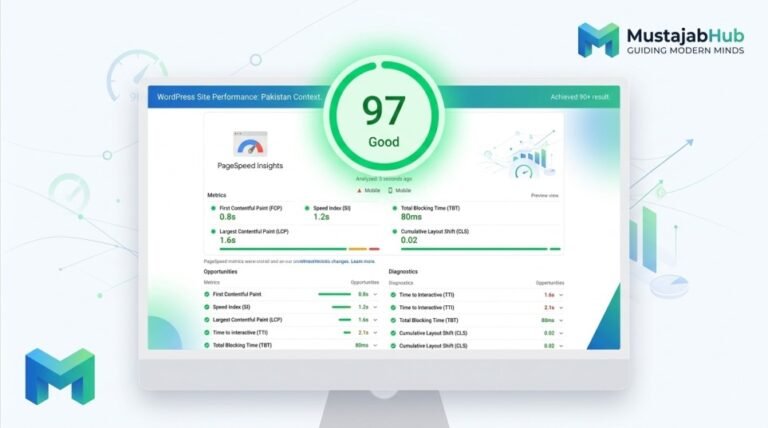
How fast is fast enough? Target a PageSpeed Insights score above 70 on mobile and above 85 on desktop. Run your site right now at pagespeed.web.dev and write down your current scores. You need a baseline before any fix so you can measure the actual impact of each change.
Why Pakistani WordPress Sites Have a Specific Speed Problem
Most WordPress speed guides are written for audiences in the US or UK. They skip the hosting reality that most Pakistani small business owners and bloggers actually face.
The majority of Pakistani websites start on shared hosting costing Rs. 2,000 to Rs. 5,000 per year. Shared hosting puts your site on a server alongside hundreds of other websites. When neighbouring sites get traffic spikes, your server response time suffers. When they run heavy plugins, your available server resources shrink. Your site’s loading performance fluctuates based on what strangers are doing on the same machine — and there is nothing you can do about it until you upgrade.
At the same time, over 70% of Pakistani internet users browse on mobile devices using 4G connections. Mobile performance is already slower than desktop by nature. Mobile-first indexing means Google evaluates and ranks your site based on its mobile performance — not desktop. A site that looks fast on your office laptop might be loading in 9 seconds on an Android phone in Lahore on a 4G connection.
The combination of cheap shared hosting, unoptimised images, zero caching setup, and a heavy WordPress theme creates the typical Pakistani website performance problem: visually impressive, technically unusable.
Every single issue listed above is fixable. Most fixes are free.

Step 1: Test Your WordPress Site Speed Before Changing Anything
Never start optimising without knowing exactly what is broken. Most people guess and waste hours fixing the wrong things.
Use all three of these free tools and write down the results before touching any settings.
Google PageSpeed Insights — pagespeed.web.dev — gives you your Core Web Vitals score, LCP, CLS, and INP values, and a ranked list of specific recommendations sorted by estimated impact. This is the most important test because it directly reflects what Google measures when ranking your site.
GTmetrix — gtmetrix.com — shows a visual waterfall diagram of every element that loads on your page, how long each one takes, and what file size each element is. GTmetrix tells you exactly which image, script, or plugin is causing the slowness. Run this when PageSpeed Insights tells you there is a problem but not which specific file is causing it.
Google Search Console — if you have this connected (and you should — it is free), go to Experience → Core Web Vitals. This shows LCP, CLS, and INP data from actual real visitors to your site — not just a simulation. When both PageSpeed Insights and Google Search Console show the same problem, that is where to start.
WebPageTest — webpagetest.org — another free tool that measures TTFB (Time to First Byte — how fast your server starts responding), HTTP requests count, and performance across different locations and devices.
Run your site through all four tools. You now have a clear picture of what needs fixing and in what order.
Step 2: Install a Caching Plugin — The Single Biggest Speed Fix
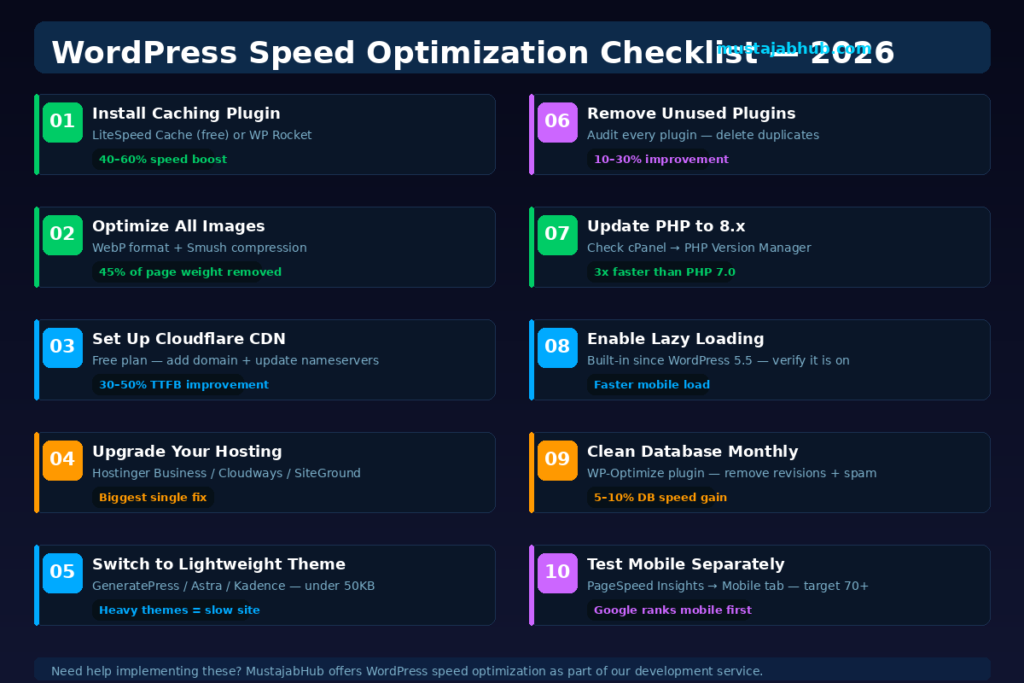
If you do only one thing from this entire guide, install a caching plugin today.
Here is what happens without caching on every single page visit. A user lands on your WordPress website. The server runs PHP code, queries the MySQL database, pulls your post content, assembles all the pieces, builds the full HTML page, and sends it to the visitor’s browser. That entire process takes 2 to 4 seconds even on decent hosting — and that is before a single image or CSS file loads.
A caching plugin breaks this cycle. On the first visit, it saves a static HTML copy of the page. Every visitor after that gets the saved static HTML file instantly — no PHP processing, no database queries, no server load spike. Page caching alone typically cuts load time by 40 to 60 percent.
WordPress caching has three layers and a good plugin handles all three:
Page caching serves the pre-built static HTML. Biggest speed impact. Every caching plugin does this.
Browser caching tells a returning visitor’s browser to store certain files locally so they do not need to re-download CSS, JavaScript, and images on every page visit.
Object caching stores the results of expensive database queries in memory so WordPress does not repeat the same database work twice. Reduces server load significantly on busy sites.
Which caching plugin should you use?
LiteSpeed Cache is completely free and the most powerful option available right now. It handles page caching, browser caching, object caching, image optimisation, lazy loading, and CDN integration inside one plugin. If your hosting runs LiteSpeed web server — which Hostinger does — LiteSpeed Cache directly integrates with the server for even faster performance. Install this first.
WP Rocket costs around $59 per year. It activates 80% of web performance best practices the moment you switch it on — no configuration needed. If you find LiteSpeed Cache confusing to set up, WP Rocket is worth the cost for the simplicity alone.
W3 Total Cache is free and powerful but has a complex settings panel that confuses beginners. Skip it unless you are comfortable with technical configuration.
One critical rule: never install two caching plugins at the same time. Running LiteSpeed Cache and WP Rocket simultaneously creates conflicts, corrupts your static HTML cache, and actually slows your site down. Pick one and remove the other completely.
After installing your chosen plugin, enable page caching, browser caching, object caching, and GZIP compression in the settings. Run PageSpeed Insights again. You will see an immediate improvement in your performance score.
Step 3: Optimise Every Image on Your Website
Images cause more page loading problems than any other single factor. The average web page carries images totalling around 45% of its total file size. A photo taken on a phone camera is typically 3MB to 8MB. A WordPress blog post with five of those images needs 15 to 40MB to load — before any scripts or stylesheets.
Three fixes eliminate this problem almost completely.
Compress all existing images. Install the free Smush plugin or ShortPixel (free tier available). These plugins automatically compress every image in your WordPress media library without any visible quality loss. A 4MB image typically compresses to 120KB. After compression, clear your cache and run GTmetrix again — the waterfall chart will show a dramatic size reduction.
Convert images to WebP format. WebP is a modern image format developed by Google. WebP images are 25 to 35% smaller than equivalent JPG or PNG files at the same visual quality. LiteSpeed Cache can convert all images to WebP automatically — enable this in the Image Optimization settings. Visitors using supported browsers (which is now essentially everyone) get WebP files automatically. Older browsers fall back to the original format.
Use lazy loading. Lazy loading means images only load when a visitor scrolls close to them — not all at once when the page first opens. This dramatically reduces initial page load time and improves LCP scores. WordPress has native lazy loading built in since version 5.5 and it should already be active. Check that your theme has not disabled it. Use the srcset attribute to serve differently-sized images to different screen sizes — your mobile visitors should not download a 1200-pixel image that will display at 400 pixels on their screen.

Step 4: Upgrade Your WordPress Hosting
This is the fix that most Pakistani WordPress guides avoid saying plainly. Here it is without softening:
If you are on cheap shared hosting, no combination of plugins will fully fix your site speed. Caching helps. Image optimisation helps. But a server that cannot respond fast enough within the first 800ms of a request will always have a poor TTFB — and poor TTFB means poor LCP, which means poor Core Web Vitals, which means lower Google rankings.
Your TTFB (Time to First Byte) should be under 800ms. If GTmetrix or WebPageTest shows a TTFB above 1.5 seconds consistently, your hosting is the bottleneck and no plugin fixes the root cause.
Here are the hosting options Pakistani WordPress site owners can actually access and pay for:
Hostinger Business Plan starts at around Rs. 700 to Rs. 900 per month. It runs on LiteSpeed web server with NVMe SSD storage, built-in LiteSpeed Cache integration, HTTP/2 and HTTP/3 support, and free SSL. The performance difference between Hostinger Business and typical cheap shared hosting is not marginal — it is the single largest speed improvement you can make to a Pakistani website. Accepts international credit cards and has payment options accessible from Pakistan.
Cloudways starts at $11 per month and runs on DigitalOcean, Google Cloud, or AWS infrastructure with NVMe SSD storage. Managed WordPress hosting on cloud servers. TTFB is typically 150 to 350ms on Cloudways versus 1,500 to 3,000ms on cheap shared hosting. Accepts Payoneer. Best for growing sites with regular traffic.
SiteGround GrowBig at around $20 to $30 per month. Excellent server response time, built-in SuperCacher for caching, HTTP/2 support, and strong customer support. Accepts Payoneer.
Any of these three managed WordPress hosting options will give you faster server response time, better uptime, NVMe SSD storage, and a stable performance foundation that makes every other optimisation you do more effective.
Step 5: Set Up Cloudflare CDN for Free
A CDN — content delivery network — stores copies of your static files on servers around the world. Images, CSS files, JavaScript files, and fonts all get cached on CDN edge nodes. When a visitor loads your site, they get those static files from the geographically closest server instead of your origin server.
Cloudflare is completely free for basic CDN functionality and it is the best option for Pakistani websites. Cloudflare has edge nodes in Mumbai, Singapore, Dubai, and other cities close to Pakistani and South Asian users. Instead of your static files travelling from a US server, they load from a Mumbai edge node. That single geographic difference cuts static file load time by 30 to 50% for Pakistani visitors.
How to set up Cloudflare:
- Create a free account at cloudflare.com
- Enter your domain name
- Cloudflare scans your DNS records automatically
- Confirm the records are correct
- Go to your domain registrar and change the nameservers to the two Cloudflare nameservers shown on screen
- Wait 2 to 24 hours for DNS propagation
After Cloudflare is active, go to Speed settings and enable Auto Minify for JavaScript, CSS, and HTML. Enable Brotli compression (more efficient than GZIP compression and supported by all modern browsers). Turn on Rocket Loader for JavaScript optimisation. All of these are free inside your Cloudflare dashboard.
HTTP requests are also reduced when your files load from Cloudflare’s cache — fewer HTTP requests mean faster overall page loading because the browser has less work to do fetching individual resources.
Step 6: Switch to a Lightweight WordPress Theme
Your WordPress theme runs on every single page of your website. A heavy theme bloated with animations, multiple Google Fonts, sliders, carousels, and widget libraries adds hundreds of kilobytes of code to every page load — even pages that never use those features.
Many popular multipurpose themes on ThemeForest look beautiful in demo screenshots. On mobile in Pakistan using a 4G connection, they regularly take 8 to 12 seconds to load. Render-blocking JavaScript and unused CSS loaded by heavy themes are two of the most common causes of poor LCP scores.
The fastest WordPress themes in 2026:
GeneratePress loads under 30KB. Starts rendering in under half a second on decent hosting. Fully compatible with Elementor, Gutenberg, and all major page builders. The free version handles most blog and business website needs. Premium version is a one-time $59 purchase.
Astra loads under 50KB. Extremely popular, well-documented, and works with all page builders. Passes Core Web Vitals out of the box on good hosting. Free version is sufficient for most use cases.
Kadence has a similar performance profile to Astra with a slightly different design approach. Excellent Gutenberg block integration and WooCommerce optimisation built in.
If you are already using Blocksy (as mentioned in your setup), you are in reasonable shape — Blocksy is lighter than most multipurpose themes. Focus your energy on hosting, caching, and image steps before worrying about the theme.
One specific warning for Pakistani WordPress users: if you are using a page builder like Elementor on every single page of your site, that adds significant JavaScript overhead per page. Keep Elementor on design-heavy pages and use the default Gutenberg editor for simple blog posts. The performance difference is measurable.
Step 7: Audit and Remove Unnecessary Plugins
Every active plugin adds PHP code that executes on every page load. This does not mean fewer plugins always equals faster performance — 40 lightweight plugins can run faster than 5 heavy ones. The issue is unnecessary, duplicate, or poorly-coded plugins.
Go to your WordPress plugin list and ask three questions about every single plugin:
Is this plugin actively doing something visible on my site right now? If it is deactivated or you forgot it exists — delete it completely. Deactivated plugins still leave database tables and configuration in your WordPress database.
Do I have two plugins doing the same job? Two SEO plugins running together, or a separate image compression plugin running alongside LiteSpeed Cache (which already handles image optimisation) — pick one and remove the other.
When was this plugin last updated? Plugins with no updates in 12+ months are security risks and potential performance problems. Find an alternative or remove them.
Plugins most commonly causing speed problems on Pakistani WordPress sites:
Contact form plugins that load JavaScript on every page even when the form only appears on one page. Configure forms to load scripts only on the contact page.
Social sharing plugins that load 5 to 8 external JavaScript files from social networks on every page load. Use a lightweight alternative that uses CSS-only sharing buttons with no external scripts.
Slider and carousel plugins like Revolution Slider add heavy animation JavaScript libraries to every page whether there is a slider on that page or not.
After plugin cleanup, clear your cache and run GTmetrix. The HTTP requests count will drop noticeably.
Step 8: Update PHP to Version 8.x
WordPress runs on PHP — the server-side programming language that processes every page request. PHP version matters enormously for WordPress performance.
PHP 8.0, 8.1, and 8.2 include a JIT (Just-In-Time) compiler that processes WordPress PHP code significantly faster than older versions. PHP 8.x handles WordPress requests roughly 3 times faster than PHP 7.0 and around 50% faster than PHP 7.4.
Most cheap Pakistani shared hosting runs PHP 7.2 or 7.4 by default. You can change this yourself in under 2 minutes.
How to update PHP on Hostinger: Log into hPanel → PHP Configuration → select PHP 8.1 or 8.2 → Save.
How to update PHP on cPanel hosting: cPanel → Software → Select PHP Version → change to PHP 8.1 or 8.2.
After changing the PHP version, visit every main page of your website and check that everything still displays correctly. Also check that forms submit, WooCommerce checkout works if you have a store, and your contact page loads. Modern WordPress themes and plugins are fully compatible with PHP 8.x, but occasionally an older plugin needs updating first.
If something breaks after the PHP update, go back to PHP 7.4 temporarily, update all your plugins and theme to their latest versions, then try PHP 8.x again.
Step 9: Optimise Your WordPress Database Monthly
WordPress stores every draft version of every post, every spam comment, expired transients, and leftover data from plugins you removed months ago. Over time, this WordPress database clutter slows down every database query — and since WordPress makes dozens of database queries per page load, a bloated database visibly slows page performance.
Install WP-Optimize (free). Go to the Database tab. Select all cleanup options: post revisions, auto drafts, spam comments, trashed posts, orphaned post metadata, expired transients, and unused tags. Run cleanup.
Add this line to your wp-config.php file to limit post revisions going forward: define('WP_POST_REVISIONS', 3);
This tells WordPress to keep only 3 saved revisions per post instead of unlimited. A post you have edited 30 times will have 30 revision copies in your database. Limiting this to 3 keeps your MySQL database lean and fast.
Schedule WP-Optimize’s database cleanup to run automatically once a month. The plugin has a scheduler built into the settings. You set it once and it runs itself.
Step 10: Fix Render-Blocking Resources
Render-blocking resources are JavaScript and CSS files that force your page to stop loading while they download and process. The page literally pauses and waits for these files before showing anything to the visitor. This is one of the most common reasons for poor LCP scores.
How to fix render-blocking JavaScript: In LiteSpeed Cache → Page Optimization settings, enable Defer JavaScript. In WP Rocket, go to File Optimization → enable Load JavaScript Deferred. In Cloudflare, Rocket Loader handles JavaScript deferral automatically. Deferred JavaScript files load after the visible page content, so visitors see the page faster even if scripts are still loading in the background.
How to eliminate unused CSS: Most WordPress themes and page builders load full CSS stylesheets even when only 10% of those styles are used on a given page. LiteSpeed Cache and WP Rocket both have a Critical CSS feature that loads only the CSS needed for the visible part of the page first, then loads the rest afterward.
Fix Google Fonts loading. If your theme or page builder loads Google Fonts from Google’s servers, each font is an external HTTP request that adds load time. Host Google Fonts locally instead — download the font files from fonts.google.com, upload them to your WordPress site, and reference them from your own server. This removes the external DNS lookup and external HTTP request entirely. OMGF (Optimize My Google Fonts) is a free WordPress plugin that automates this in one click.
WordPress Performance Targets for 2026
After completing all steps, here are the performance scores to aim for:
| Metric | Typical slow site | Target after fixes |
|---|---|---|
| PageSpeed mobile score | 15–35 | 70+ |
| PageSpeed desktop score | 40–60 | 85+ |
| LCP | 6–12 seconds | Under 2.5 seconds |
| CLS | 0.25–0.8 | Under 0.1 |
| INP | 400–800ms | Under 200ms |
| TTFB | 1.5–3 seconds | Under 800ms |
| GTmetrix Grade | D or F | B or A |
| Fully loaded time | 7–12 seconds | Under 3 seconds |
Work through one step at a time, test after each change, and track your improvements in a simple notebook or spreadsheet. Most sites see the biggest jump after completing steps 2 (caching), 3 (images), and 4 (hosting) together. After those three, the remaining steps add incremental improvements that compound into a much faster site overall.
Common Mistakes That Keep WordPress Sites Slow
Running a page builder on every single page. Elementor and similar page builders add substantial JavaScript and CSS to each page they power. Use Elementor on pages that genuinely need complex layouts. Write simple blog posts in Gutenberg.
Installing every plugin that looks useful. Before installing anything new, check whether your existing caching plugin already does the same job. LiteSpeed Cache alone handles image compression, CDN, lazy loading, minification, browser caching, and object caching — that is 6 plugins replaced by one free plugin.
Testing speed while logged in to WordPress. Logged-in users often bypass page caching and see the slow uncached version. Log out of WordPress entirely before running any speed test. That is the experience your actual visitors have.
Ignoring mobile performance. Optimising for desktop and ignoring mobile is the most common and most damaging mistake Pakistani website owners make. Google ranks you based on mobile performance. Test the Mobile tab on PageSpeed Insights specifically. A desktop score of 85 with a mobile score of 32 means Google sees you as a slow site.
Using a CDN without optimising images first. A CDN delivers your files fast — but if your images are 4MB each, a CDN delivers large files fast. The result is still a slow website. Compress images before setting up Cloudflare, not after.
Does Your Site Still Load Slowly After These Steps?
Some WordPress performance problems go deeper than plugins and settings can reach. If your Core Web Vitals are still failing after completing this checklist, the issue is usually in your theme’s custom code, server configuration, database architecture, or third-party scripts injected by tools you may not even know about.
At MustajabHub, we handle full WordPress speed audits and performance fixes for Pakistani small businesses and bloggers. We use GTmetrix, PageSpeed Insights, and WebPageTest to identify the exact source of every slowness issue — not guesswork — and we fix them at the technical level. See our WordPress development and optimisation services or book a free 30-minute consultation.
Frequently Asked Questions
Why is my WordPress website so slow even with a caching plugin installed?
Caching alone cannot overcome poor hosting performance. If your TTFB is above 1.5 seconds in GTmetrix, your shared hosting server is responding slowly before caching even helps. Upgrade to Hostinger Business or Cloudways and your caching plugin will work dramatically better. Also check that you have not accidentally installed two caching plugins — they conflict and cause slowness rather than fixing it.
What is the best free caching plugin for WordPress in 2026?
LiteSpeed Cache is the most powerful free caching plugin available. It handles page caching, browser caching, object caching, image compression, WebP conversion, lazy loading, CSS and JavaScript minification, and CDN integration — all in one free plugin. It performs best on Hostinger and other hosting providers running LiteSpeed web server.
How do I check my Core Web Vitals for my WordPress site?
Use two tools together. Google PageSpeed Insights at pagespeed.web.dev shows your LCP, CLS, and INP scores in a simulated environment. Google Search Console under Experience → Core Web Vitals shows real data from actual visitors to your site. Both are free. Use Search Console data to understand how real Pakistani users on mobile experience your site.
Is Cloudflare free CDN enough for a WordPress site in Pakistan?
Yes — Cloudflare’s free plan is sufficient for most Pakistani small business websites and blogs. It includes global CDN distribution, Brotli compression, Auto Minify, DDoS protection, and free SSL. Cloudflare edge nodes in Mumbai and Singapore specifically reduce load time for Pakistani visitors compared to origin servers hosted in Europe or the US.
How much does fixing WordPress speed cost in Pakistan?
Most fixes in this guide are completely free. LiteSpeed Cache, Smush, Cloudflare CDN, WP-Optimize, and the PHP version update are all free. Hostinger Business hosting costs Rs. 700 to Rs. 900 per month. WP Rocket costs $59 per year if you prefer it over LiteSpeed Cache. The only unavoidable cost is better hosting — and even that is under Rs. 1,000 per month.
How long does it take to improve WordPress site speed?
With this checklist, you can complete steps 1 to 5 in a single afternoon. The speed improvement is visible immediately after each step. Most sites go from a mobile PageSpeed score of 15 to 25, up to 60 to 75, in one focused session. Full Core Web Vitals improvement — especially CLS and INP — may take a few days as you test and adjust settings.
Does WooCommerce slow down a WordPress website?
WooCommerce adds database queries and PHP processing to every page load. On cheap shared hosting, a WooCommerce store with unoptimised images can easily take 8 to 15 seconds to load. The fixes in this guide apply directly to WooCommerce sites — caching, image optimisation, better hosting, and lightweight theme selection all improve WooCommerce performance significantly. Astra and Kadence themes are specifically optimised for WooCommerce speed.
For the official Google documentation on Core Web Vitals requirements and PageSpeed scoring, visit Google Search Central.